Data flow map
Create objects
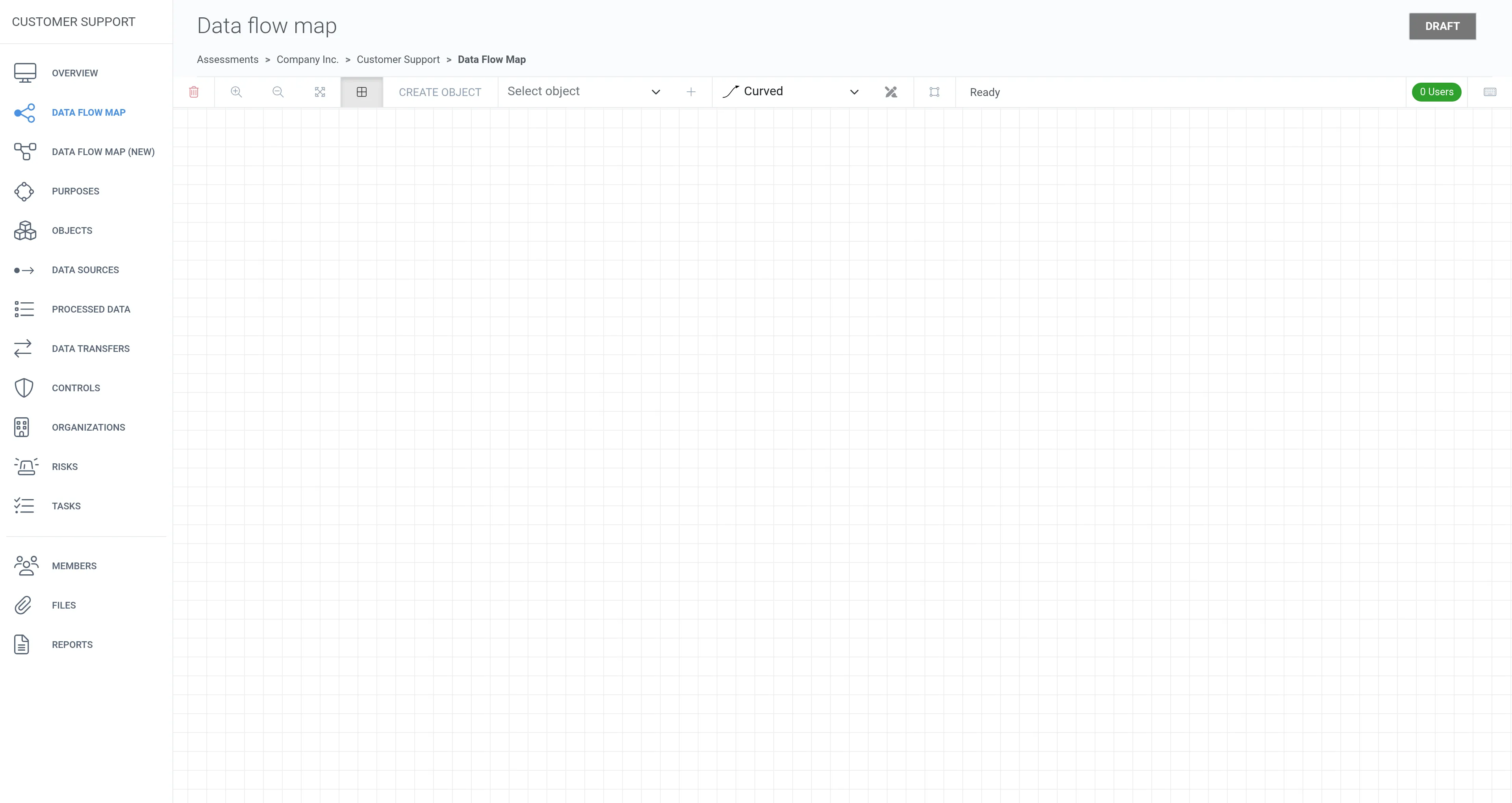
Section titled “Create objects”1. Click Data flow map from the left navigation panel.
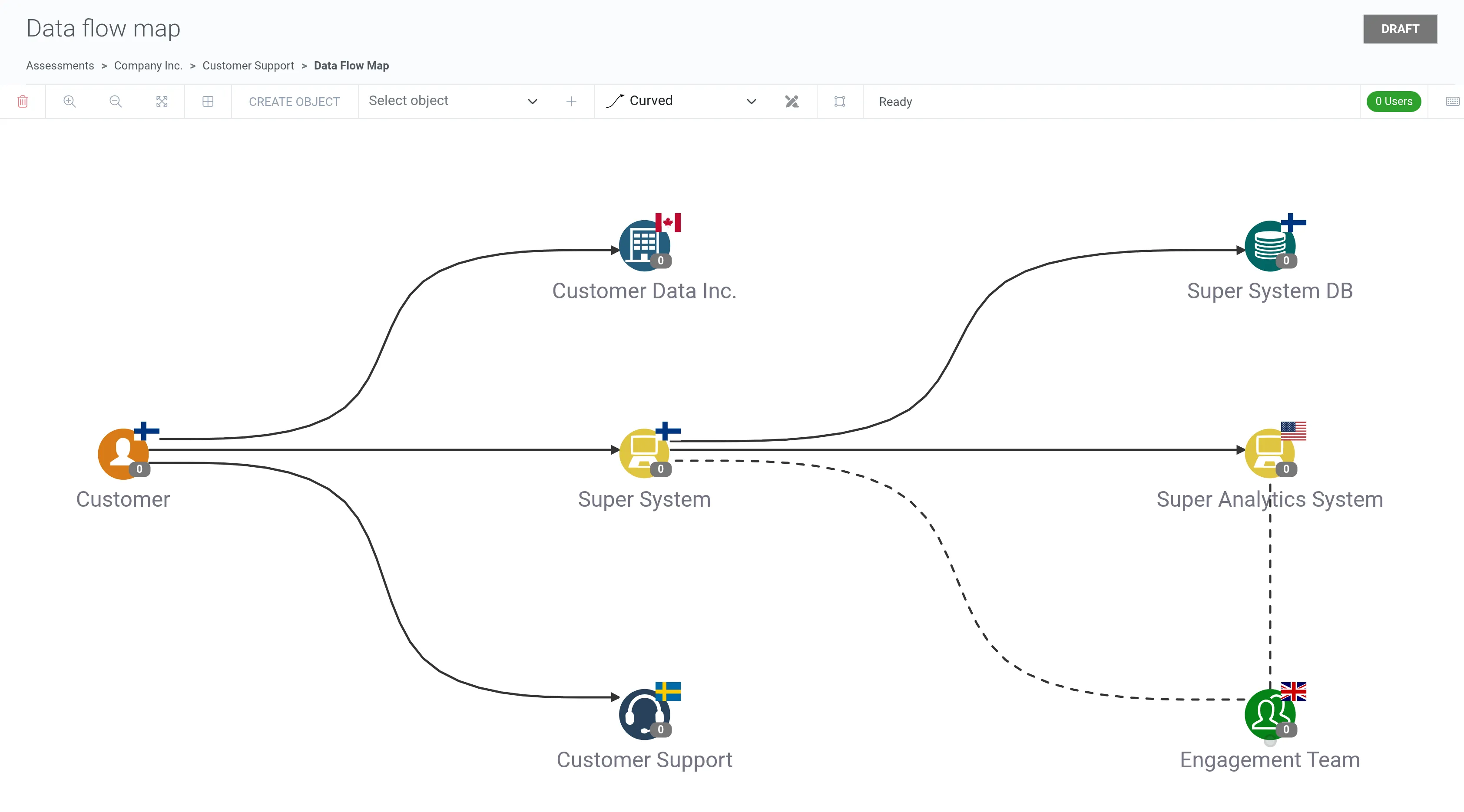
2. Create your first object by selecting Create object from the toolbox.
3. Select Data subject category as the Object type and enter a Title for the object.
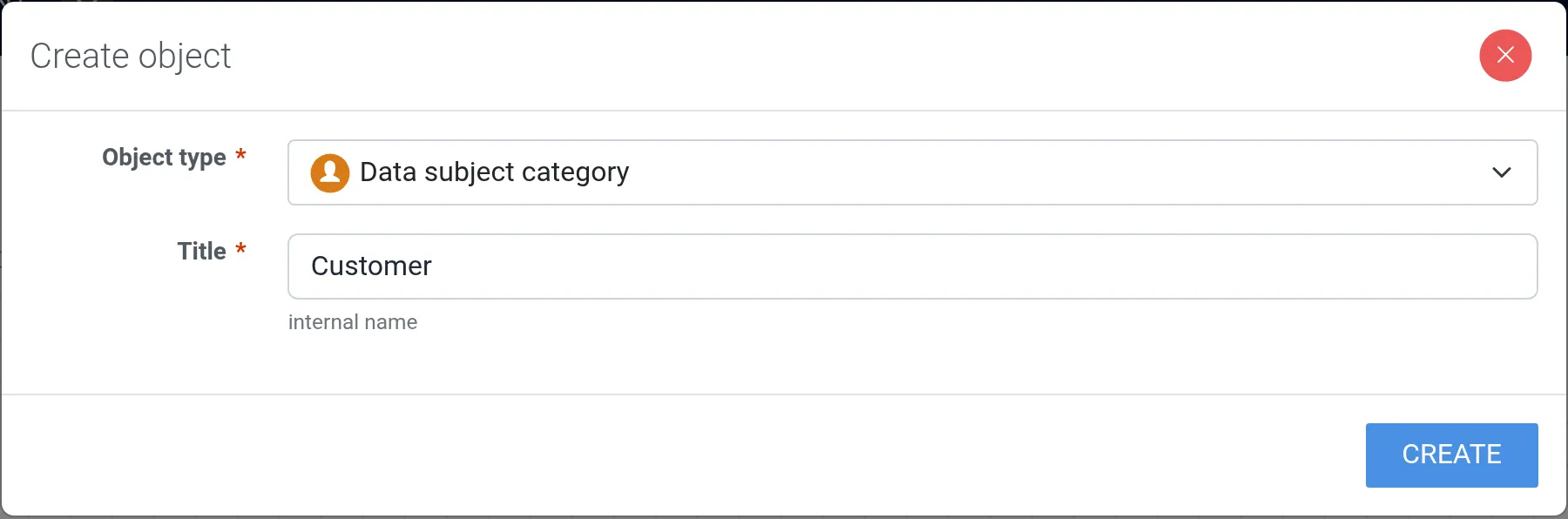
4. Click Create.
5. Create all the objects that relate to the assessment’s data processing activities, read more about assessment objects in Objects.
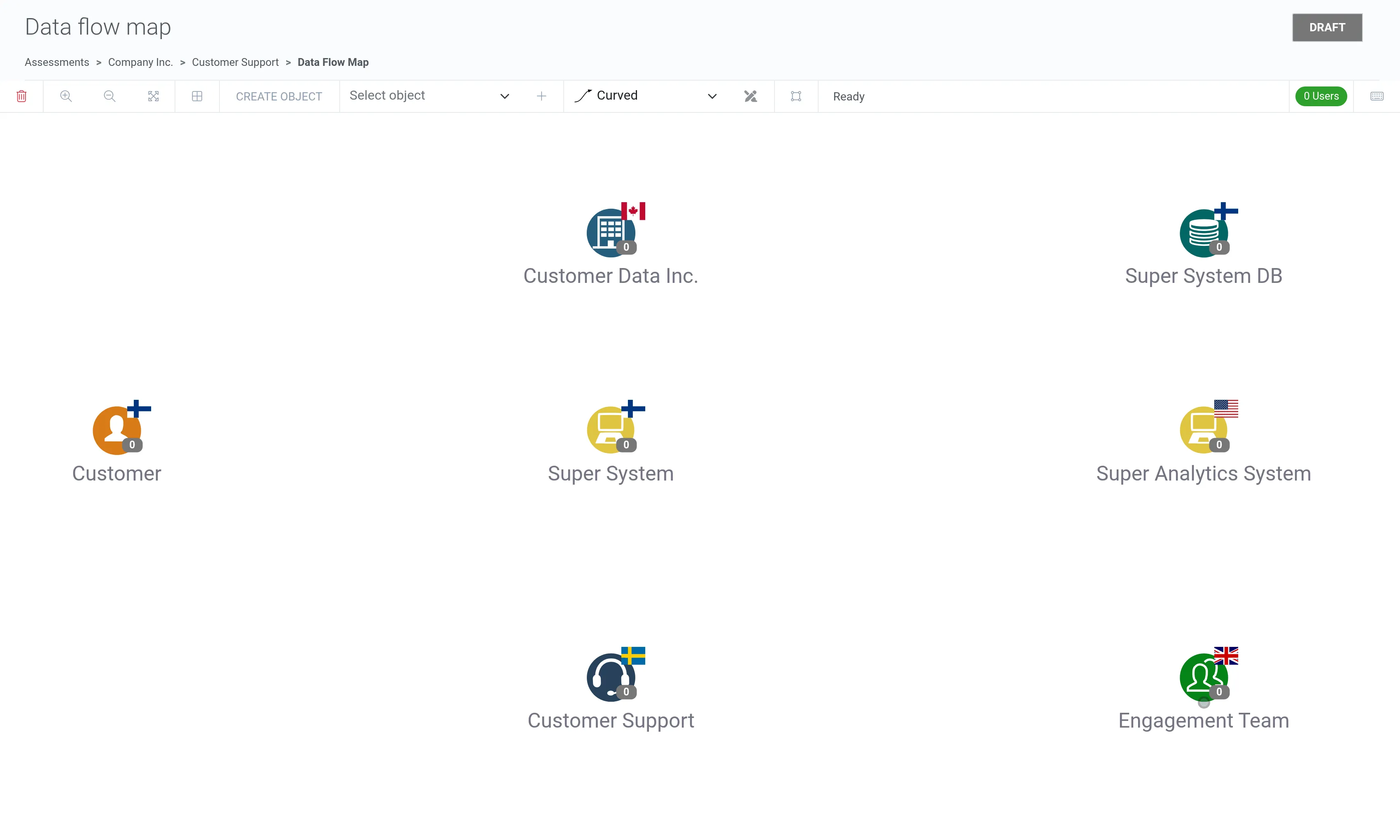
6. Connect objects together, read more about data flow in Data flow.
Describe an object
Section titled “Describe an object”7. To observe an object, double click it in the data flow map. (Customer is viewed here.)
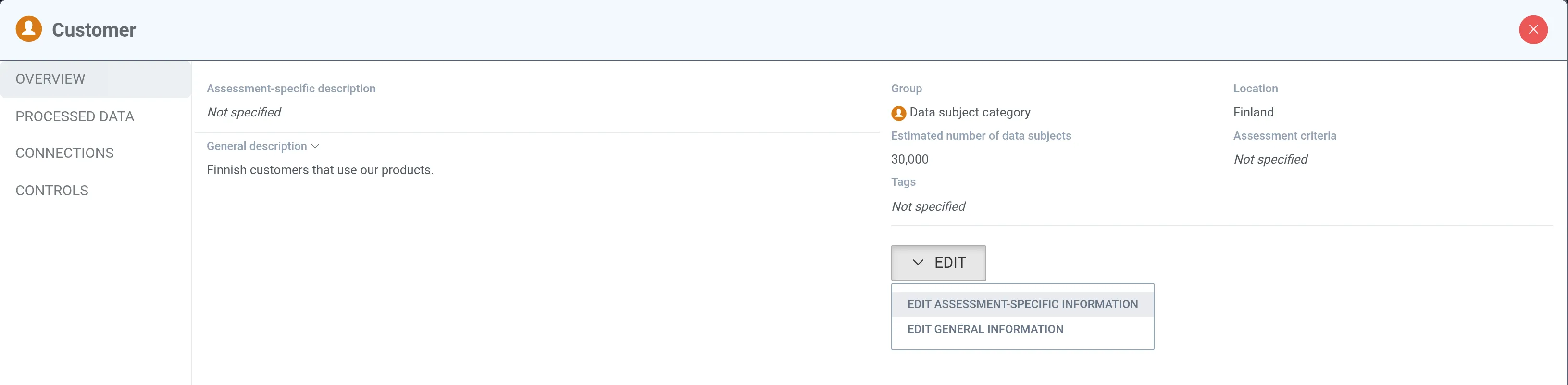
8. Describe how the object is relevant in the assessment.
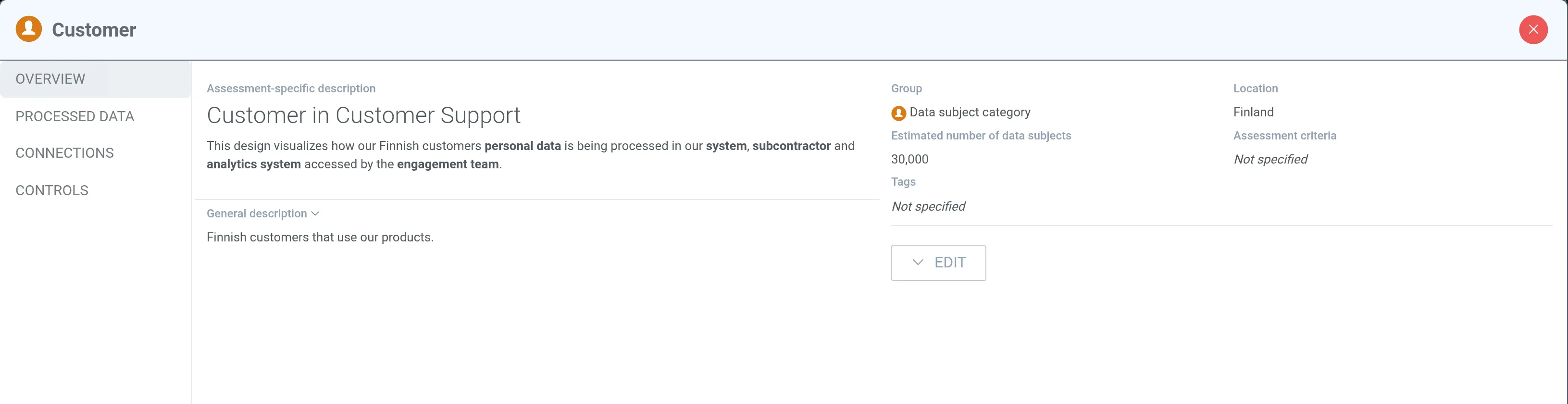
9. Check with Preview how the description will look.
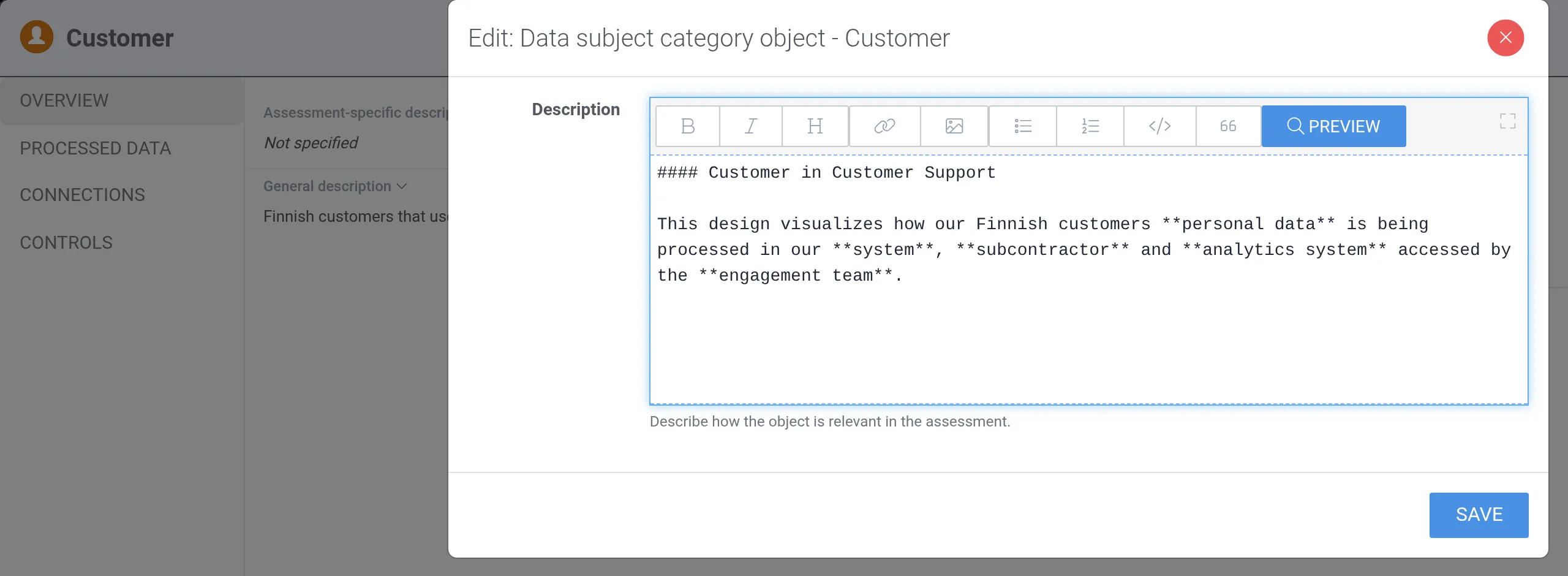
10. To save your changes click Save.
Add data types
Section titled “Add data types”11. To add data types and data categories, navigate to the Processed data tab.
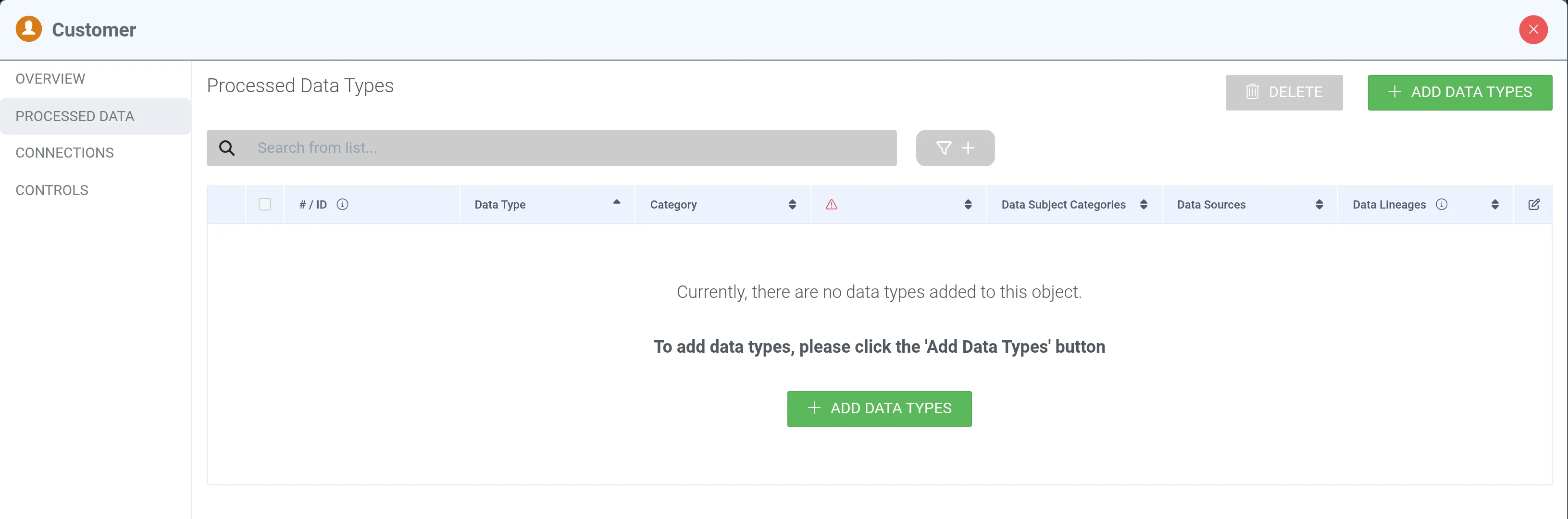
12. Click + Add data types.
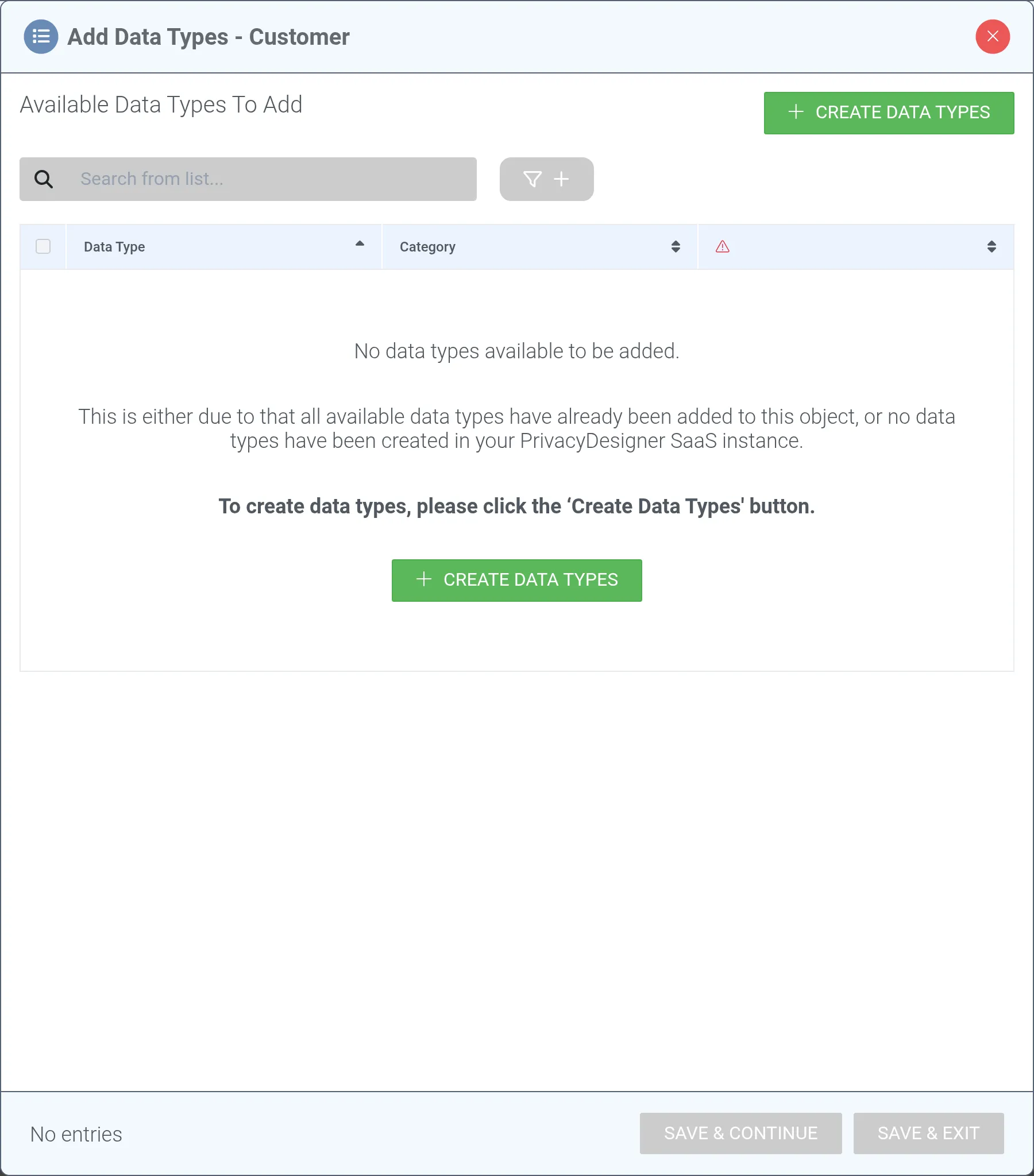
13. If the data type you need has not been created yet, click + Create data types to open the creation dialog.
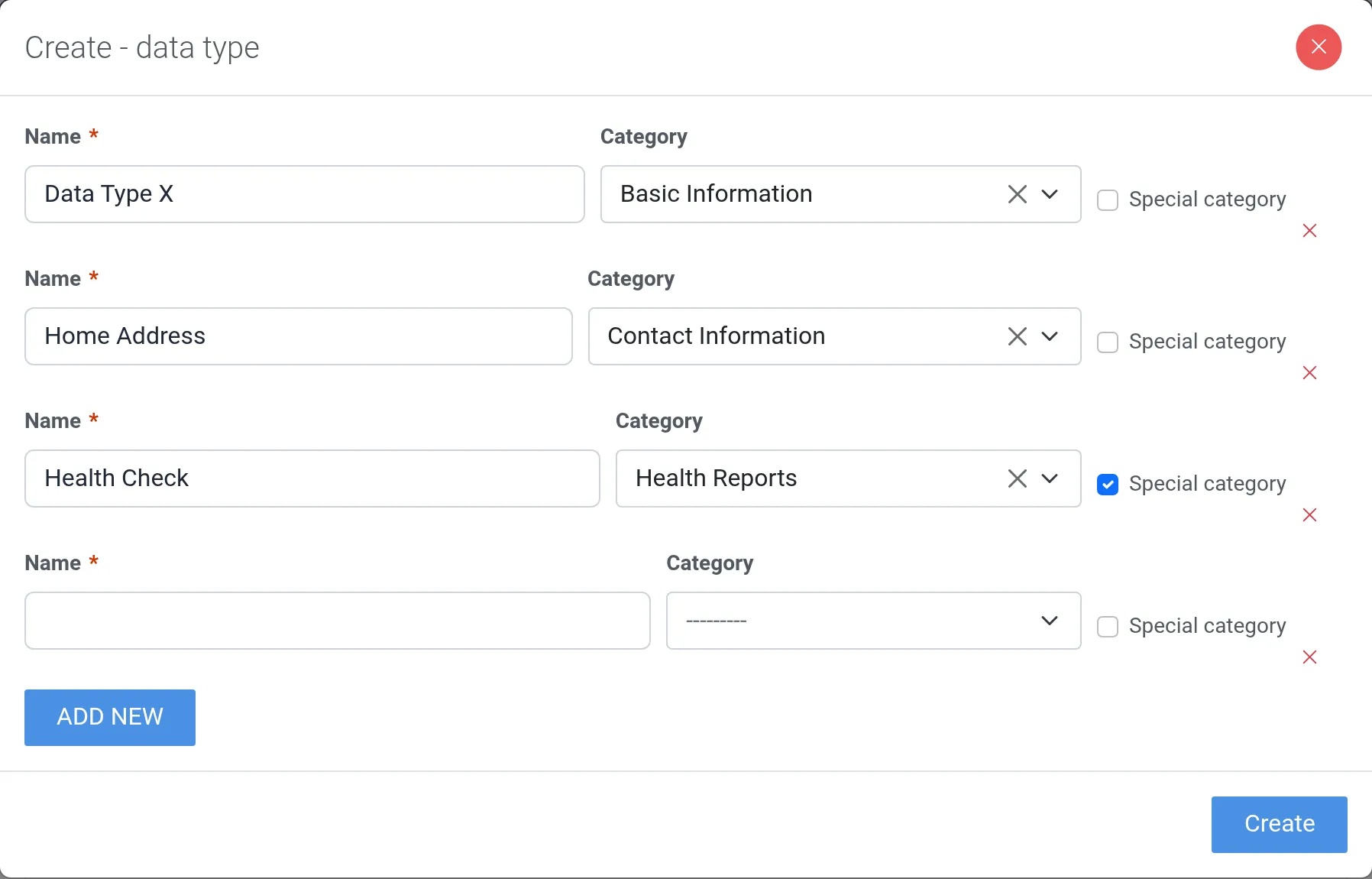
14. Name the data type and optionally select a category for each data type. Select Special category for data types that belong to the special categories of personal data.
15. Click Add new to create multiple data types at once.
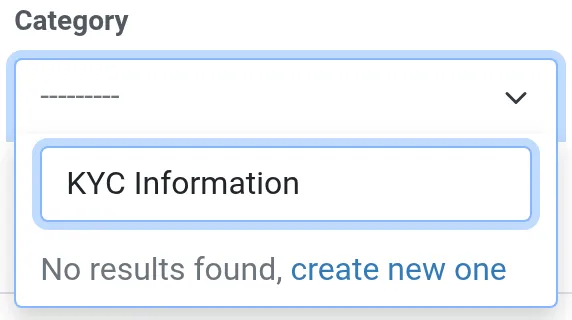
16. If a category does not exist yet, type its name in the Category field and click create new one.
17. Name the category and optionally select a parent category for it. This creates a hierarchy similar to that of assessments.
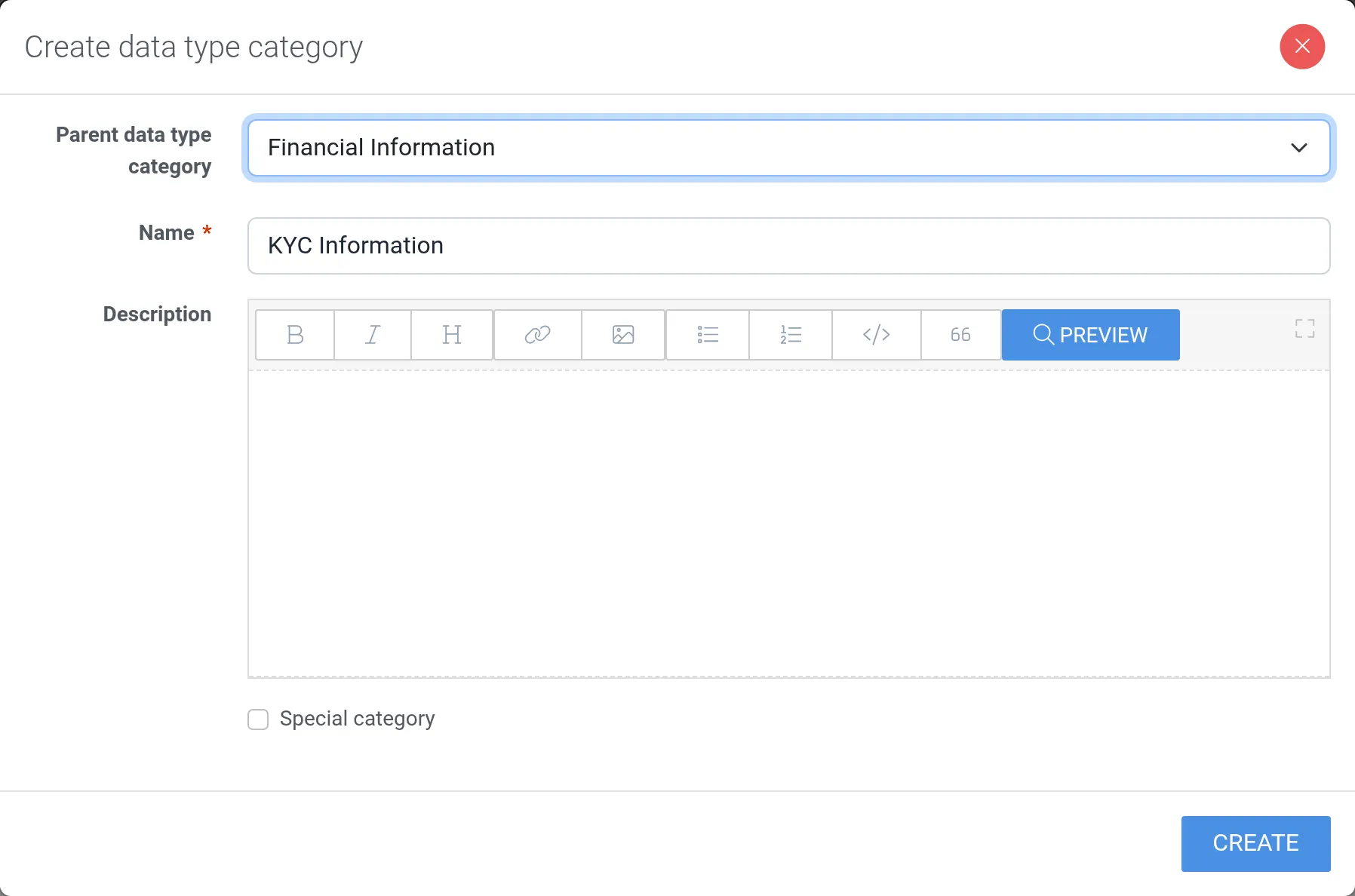
18. Click Create to save the category.
19. Once you are done with creating data types and categories, click Create in the data type dialog.
20. The created data types are now listed in the Add data types dialog.
21. Select all data types that are processed in this assessment.
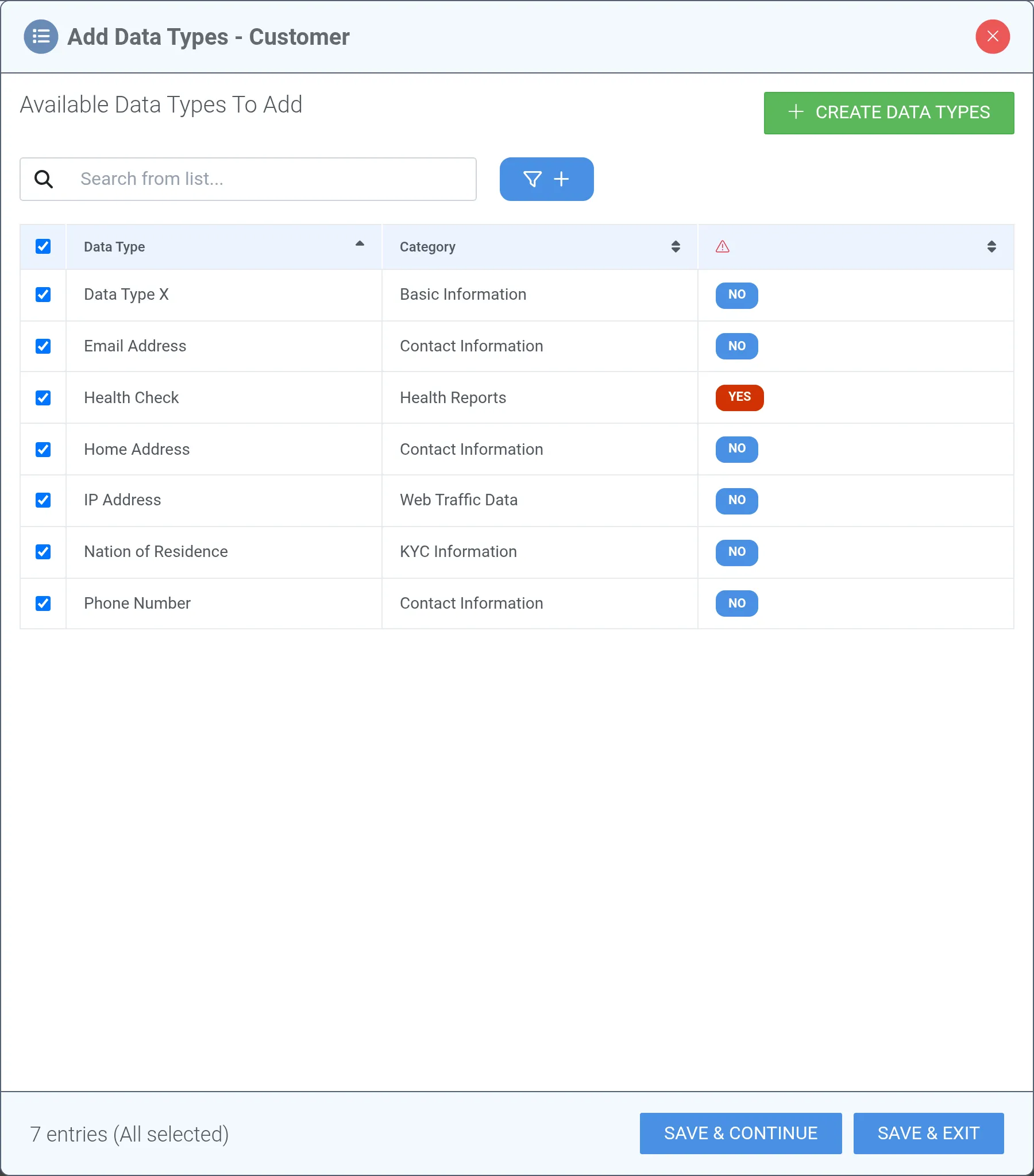
22. Click Save & exit.
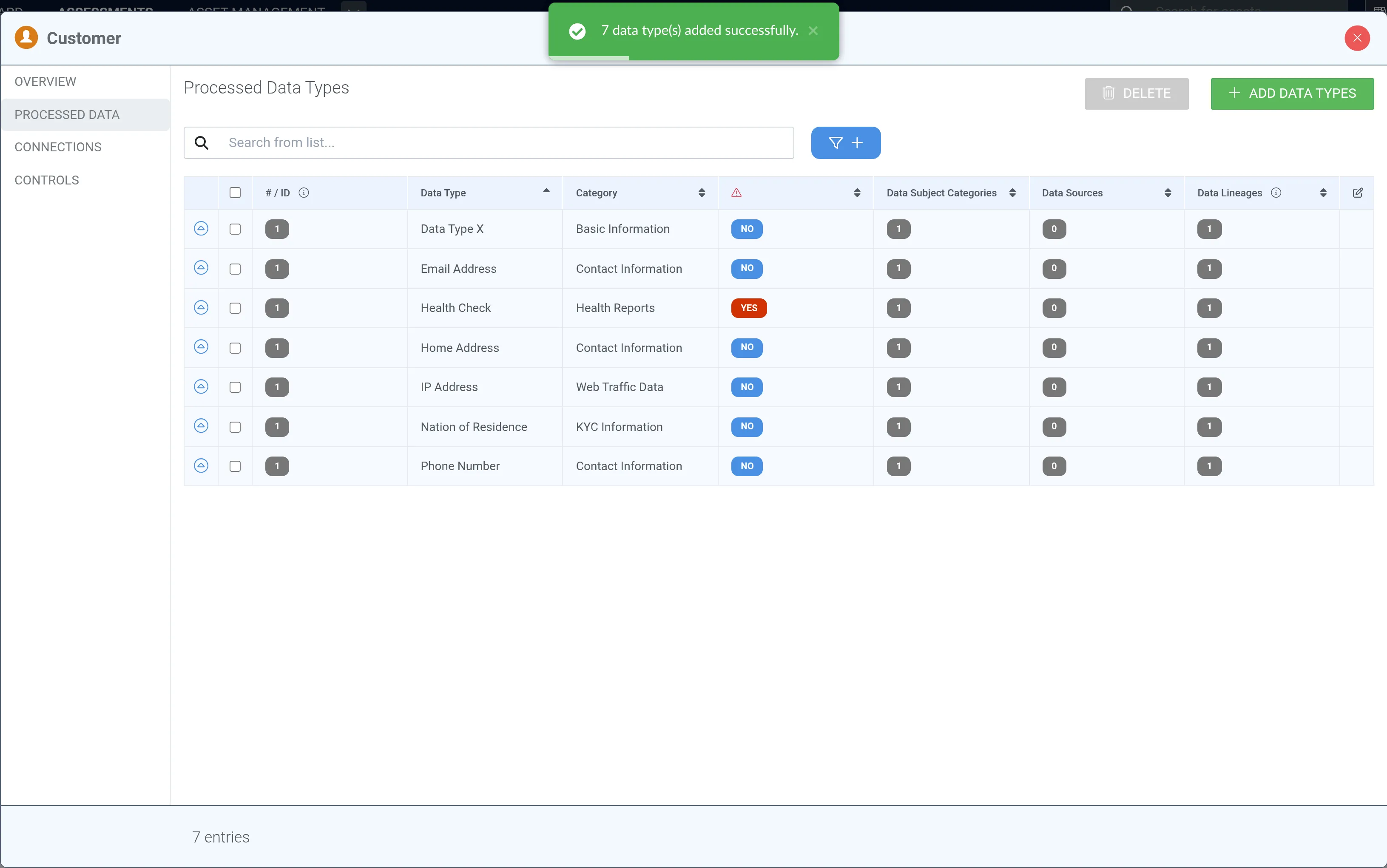
The ⚠ column shows whether a data type belongs to the special categories of personal data.
Link processed data to connections
Section titled “Link processed data to connections”23. Close the form by clicking the “X” in the top-right corner of the object window.
24. Notice that you can now see the number “7” in a blue label in the Customer object, which represents the number of processed data types in that object. Next, double click the connection originating from the Customer object (data subject category).
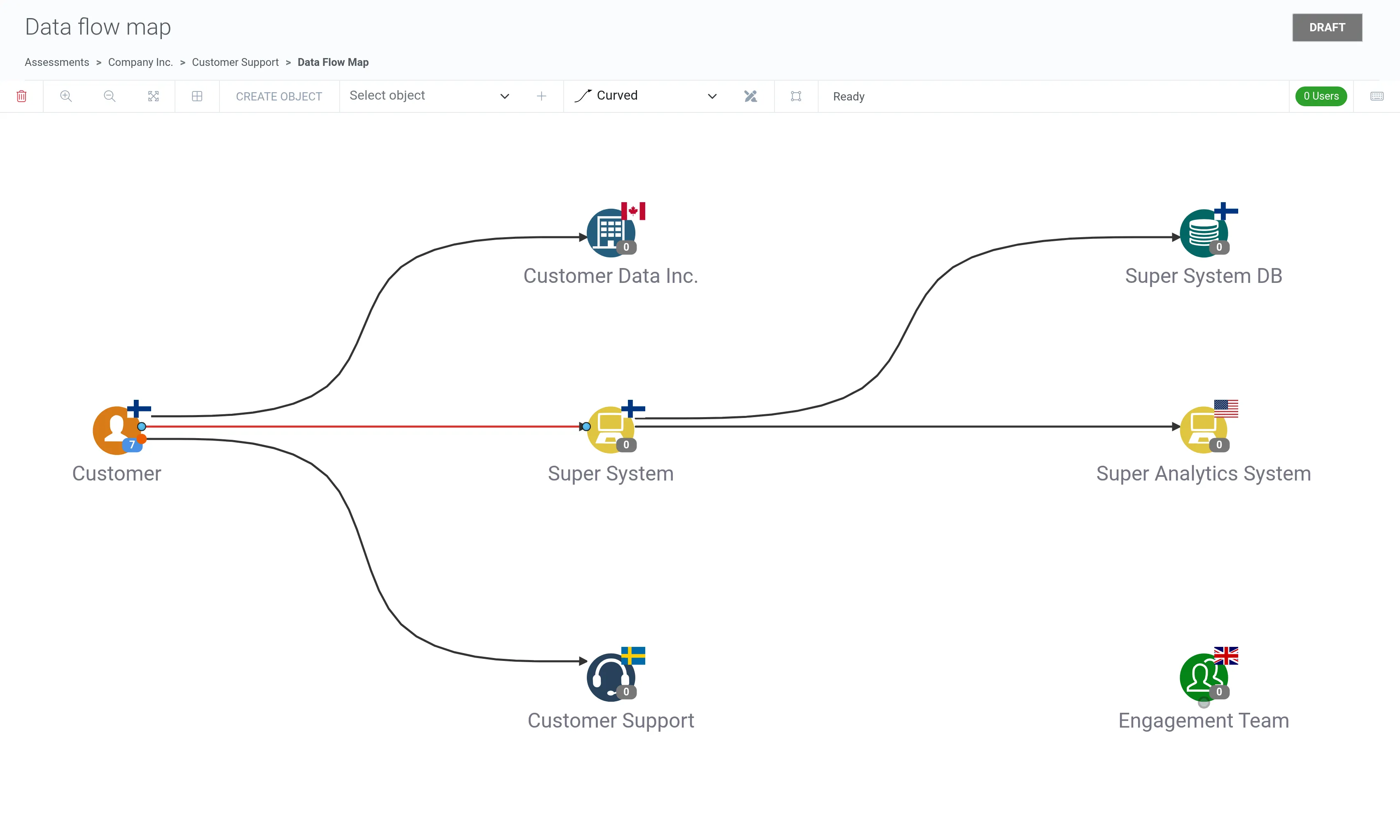
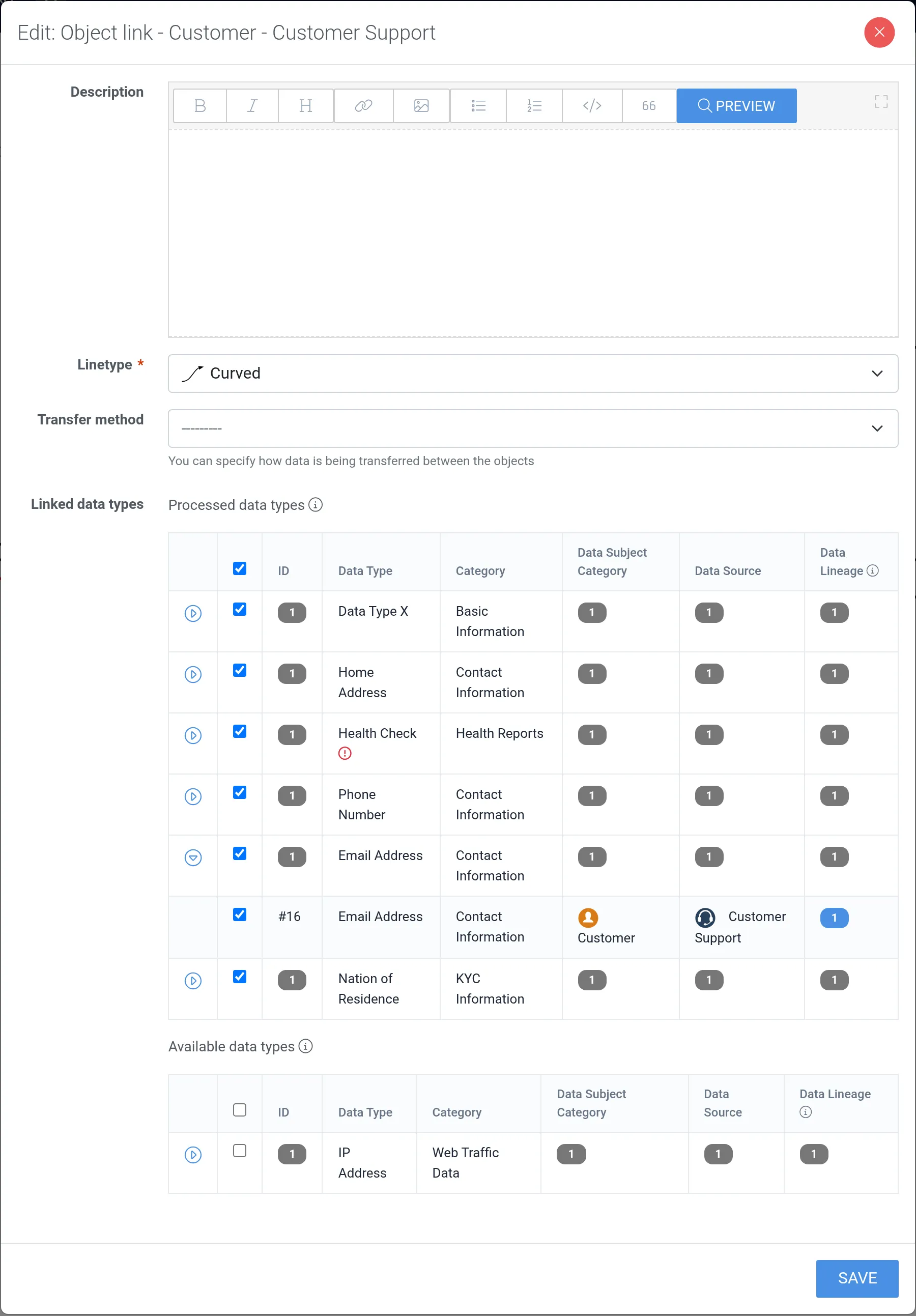
25. Click Edit to define which processed data types are flowing in the selected connection between Customer and Super System.

26. Select from the available processed data types.
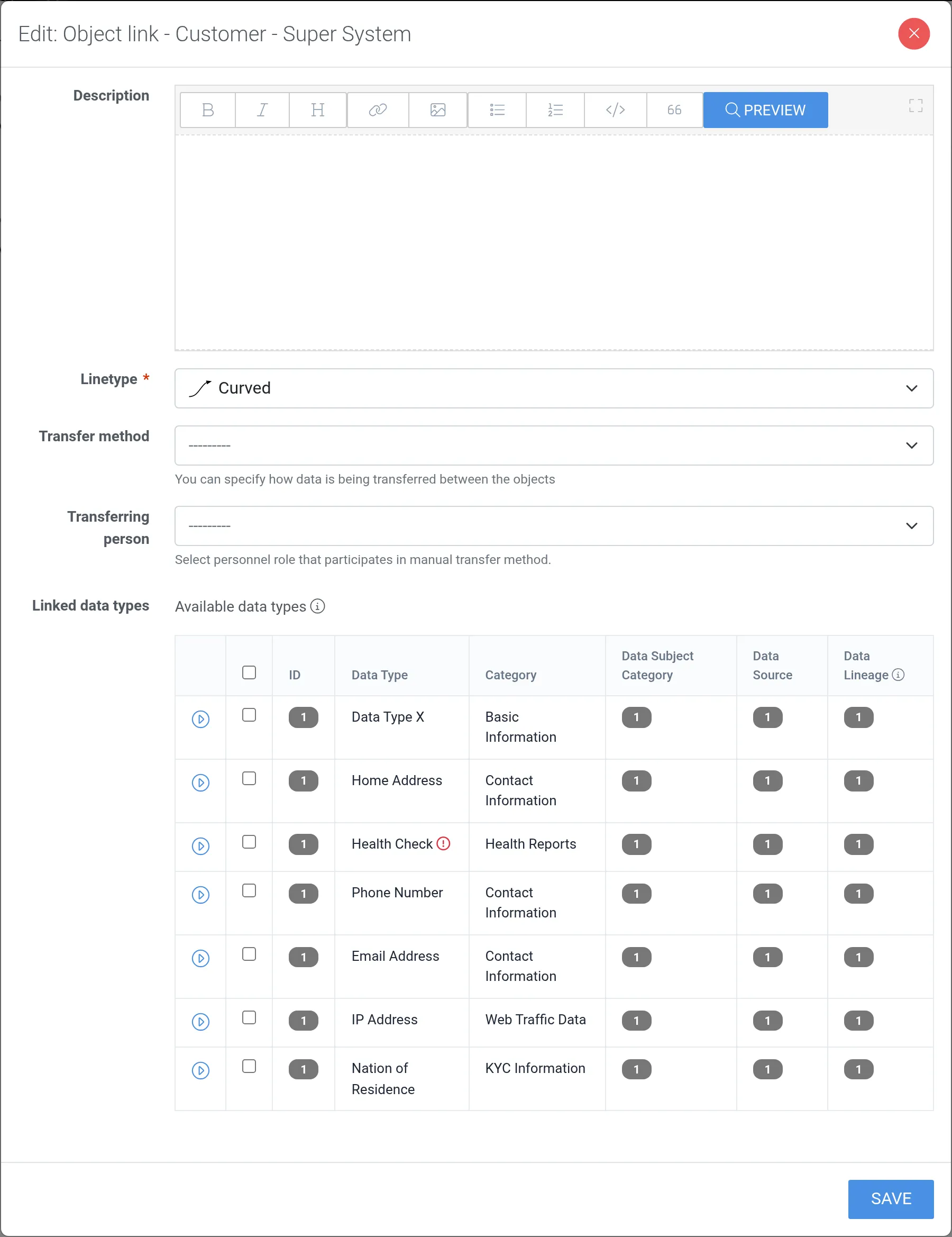
27. Click Save.
28. Return to the data flow map by clicking the “X”.
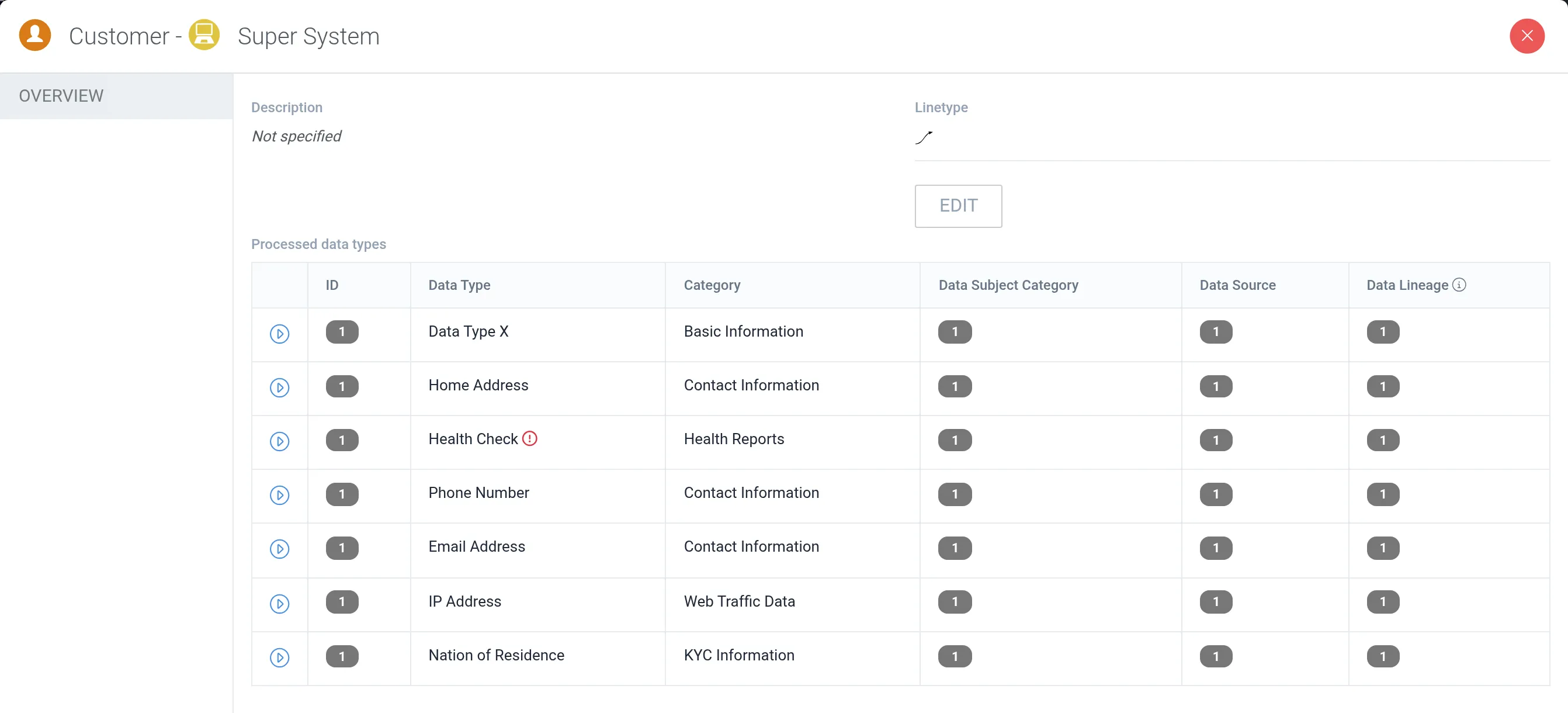
29. Repeat steps 23–28 to insert processed data types to each connection line.
30. Once you have finalized the data-flow map, there should be at least one processed data type in each object in the data-flow map.
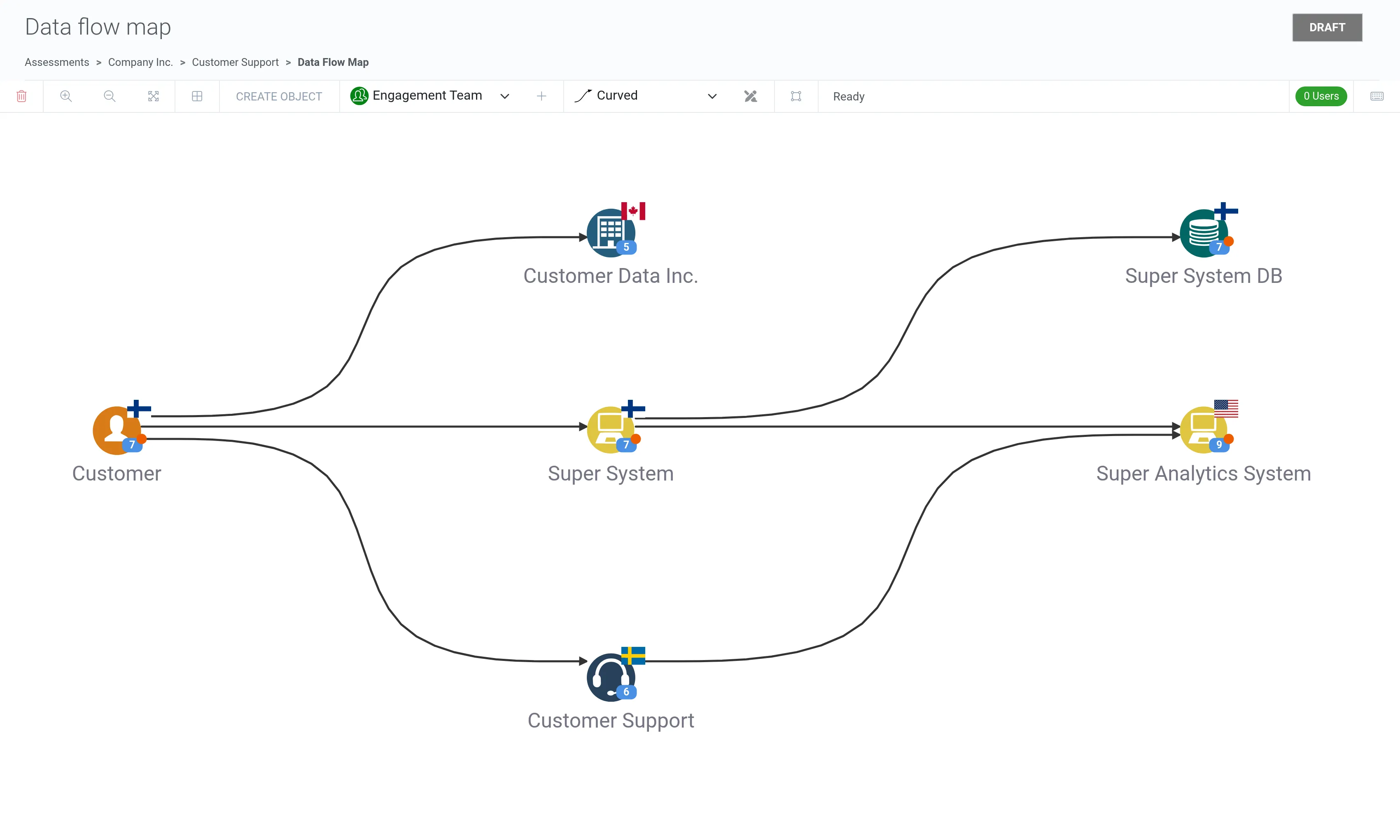
31. Notice that in the Processed Data tab of objects (and inside connection lines), you can expand the processed data type rows with the blue arrow icon in the far-left column, which reveals the specific processed data types (ID, data type, category, data subject category, data source, and data lineage). You can also click the blue labels with a number in them to reveal the route of each processed data type.
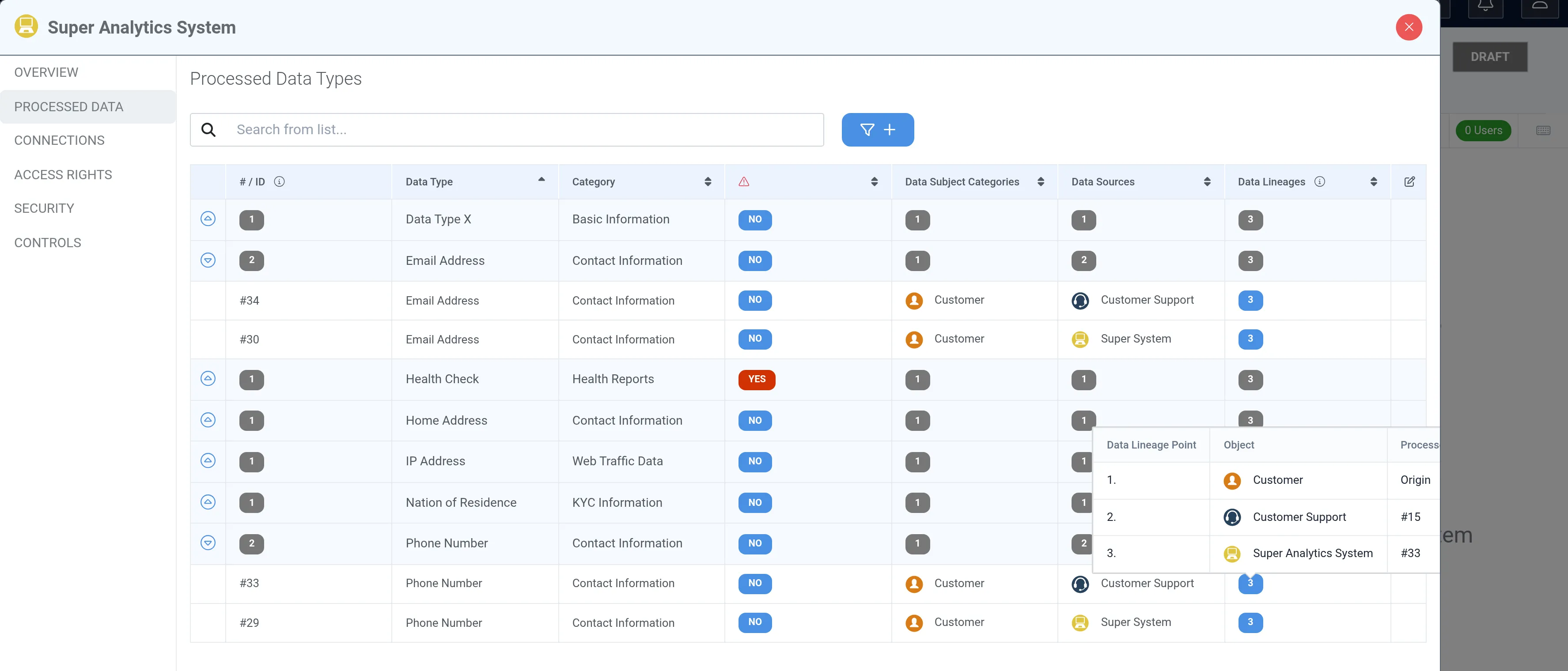
32. The same logic works inside connection lines’ processed data types tables. Notice that you can also deselect specific processed data types, so that they no longer flow between the objects.