Members
To participate in an assessment, a user has to be either an assessment team member or an assessment admin in that assessment.
Add assessment admins
Section titled “Add assessment admins”Let’s grant assessment admin permission for our example user “John Doe” in the root assessment “Company Inc.”, which was created by the user dev.
1. Navigate into an assessment by clicking its name.
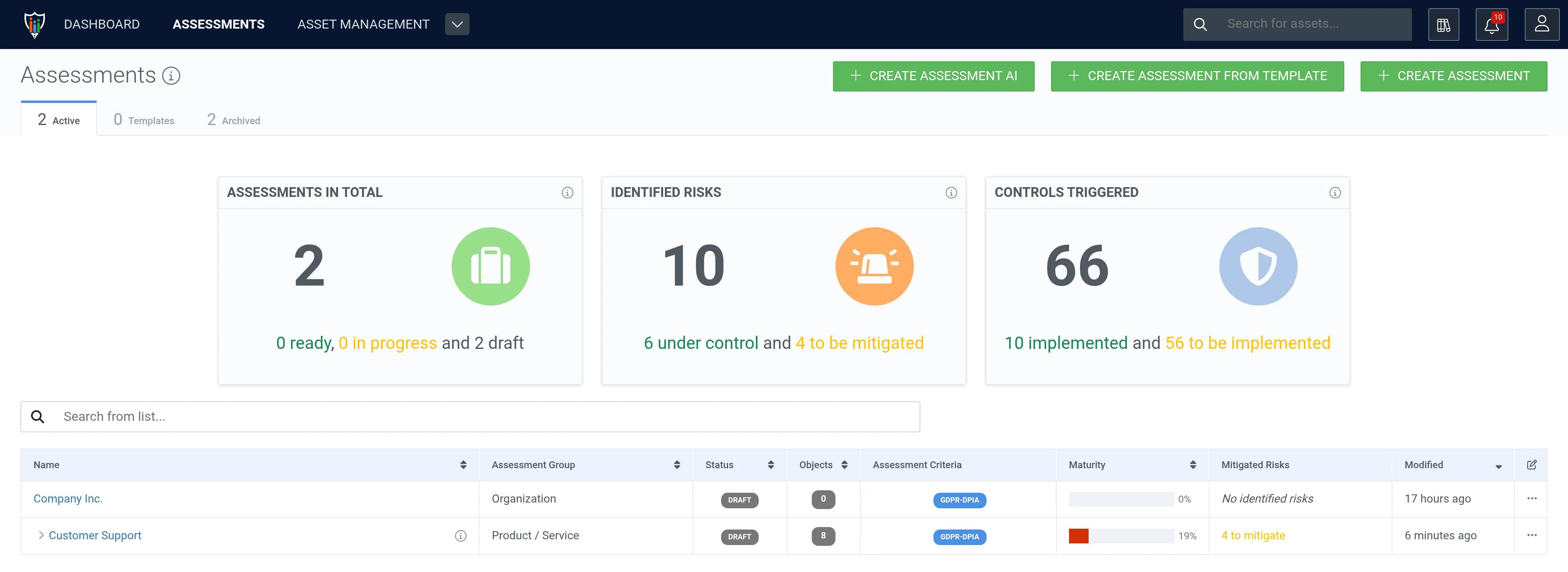
2. Click Members.
3. Click the add assessment admins button (person icon with a plus sign) in the Assessment admins table.
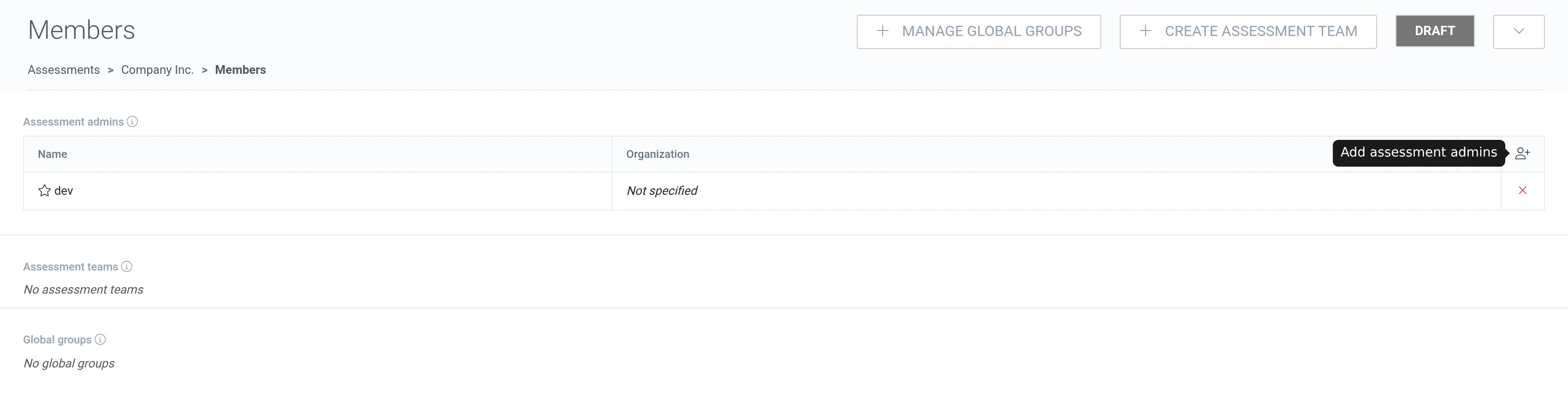
4. Select the user(s) that should be granted assessment admin permissions for the assessment.
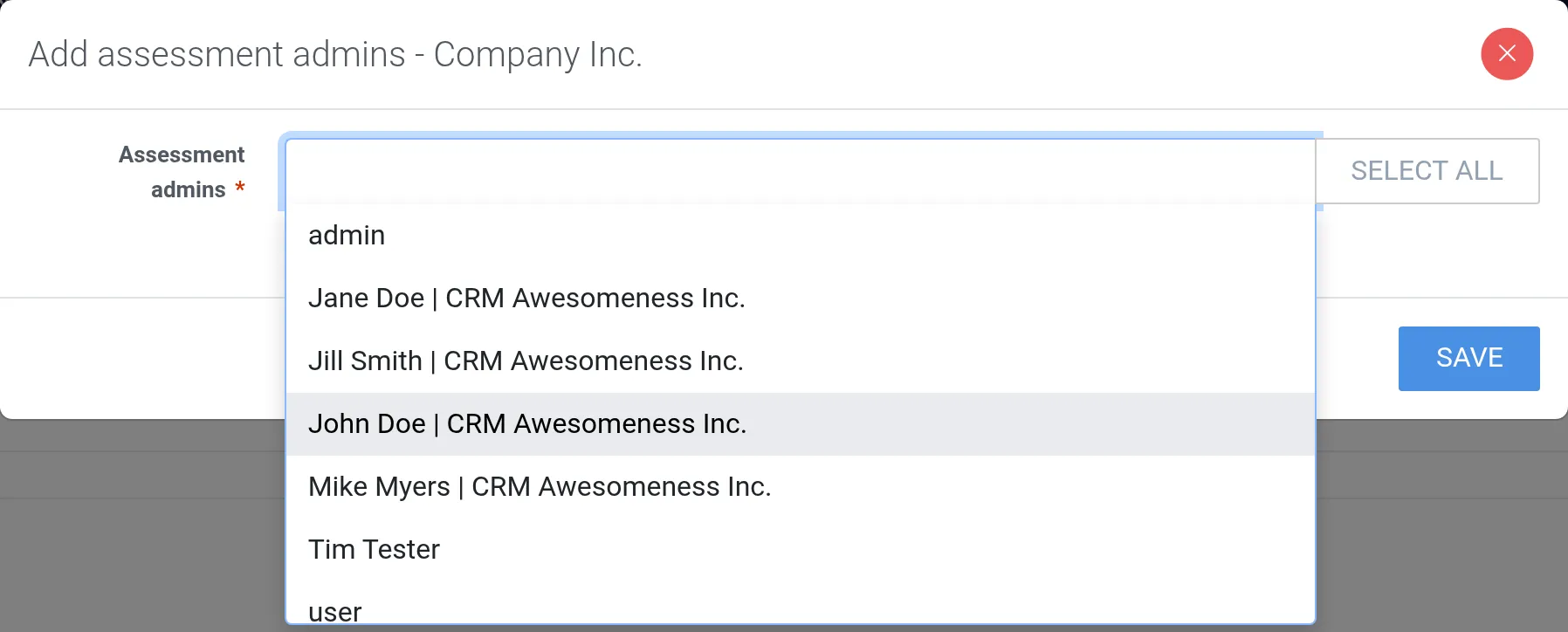
5. Click Save.
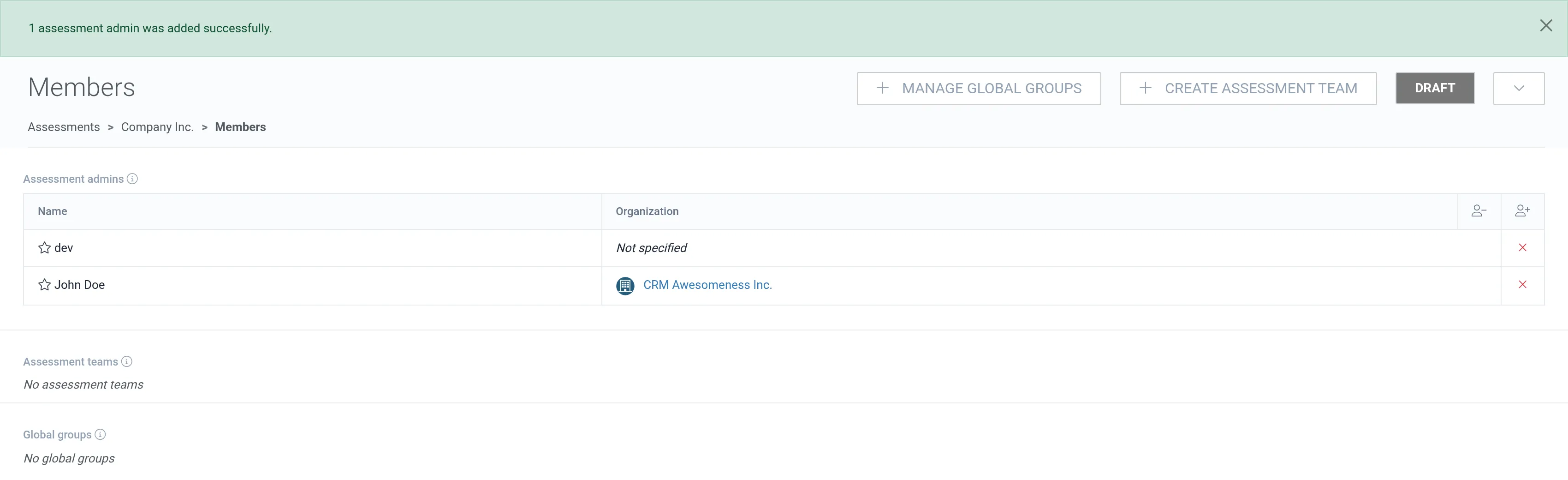
John Doe is now an assessment admin of the root assessment “Company Inc.”.
Create assessment team
Section titled “Create assessment team”We are now logged in with the user John Doe.
John Doe collaborates with his colleague Jane Doe. Let’s add Jane Doe as an assessment team member to the root assessment “Company Inc.” so she can participate in that assessment.
1. Click Create assessment team.
2. Type a name for the assessment team.
3. Select members for the assessment team. dev and John Doe are not available, as they are already assessment admins in this assessment.
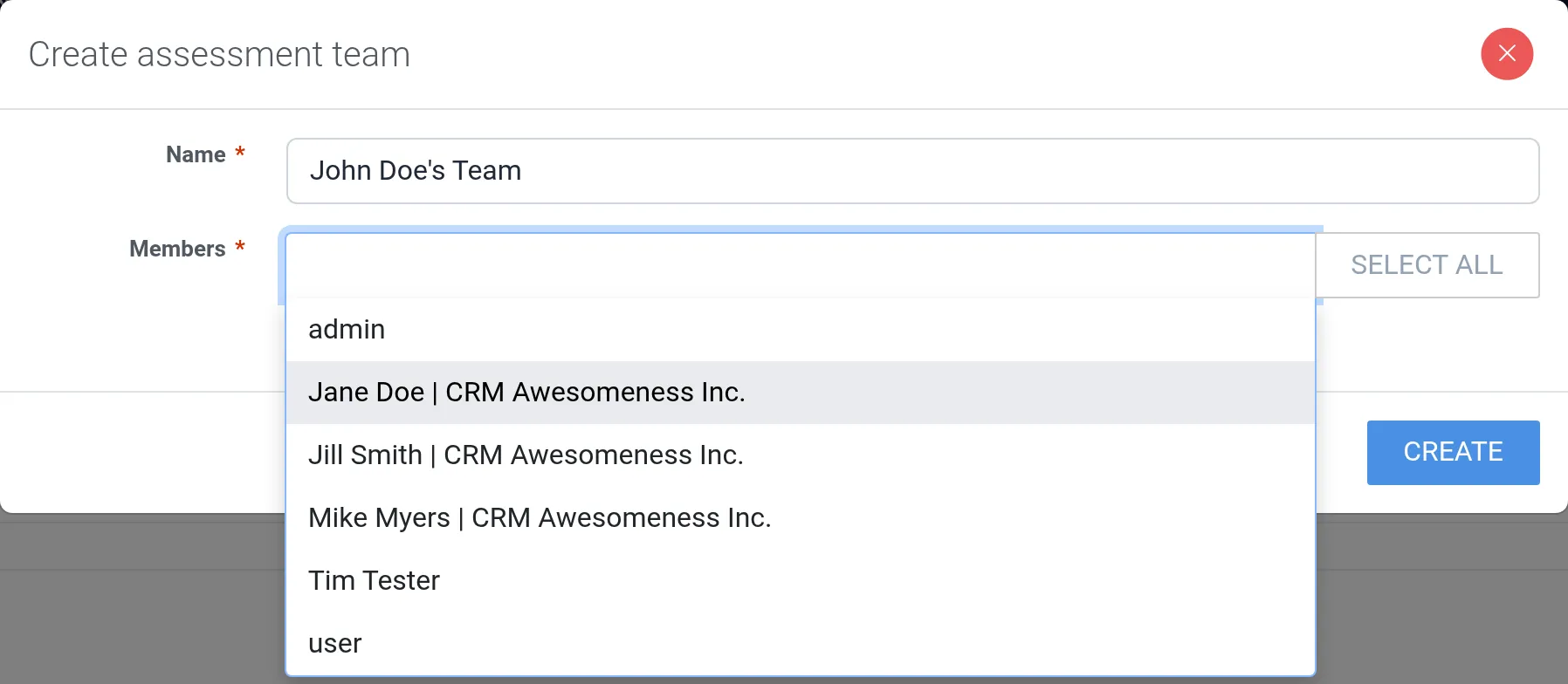
4. Click Create.
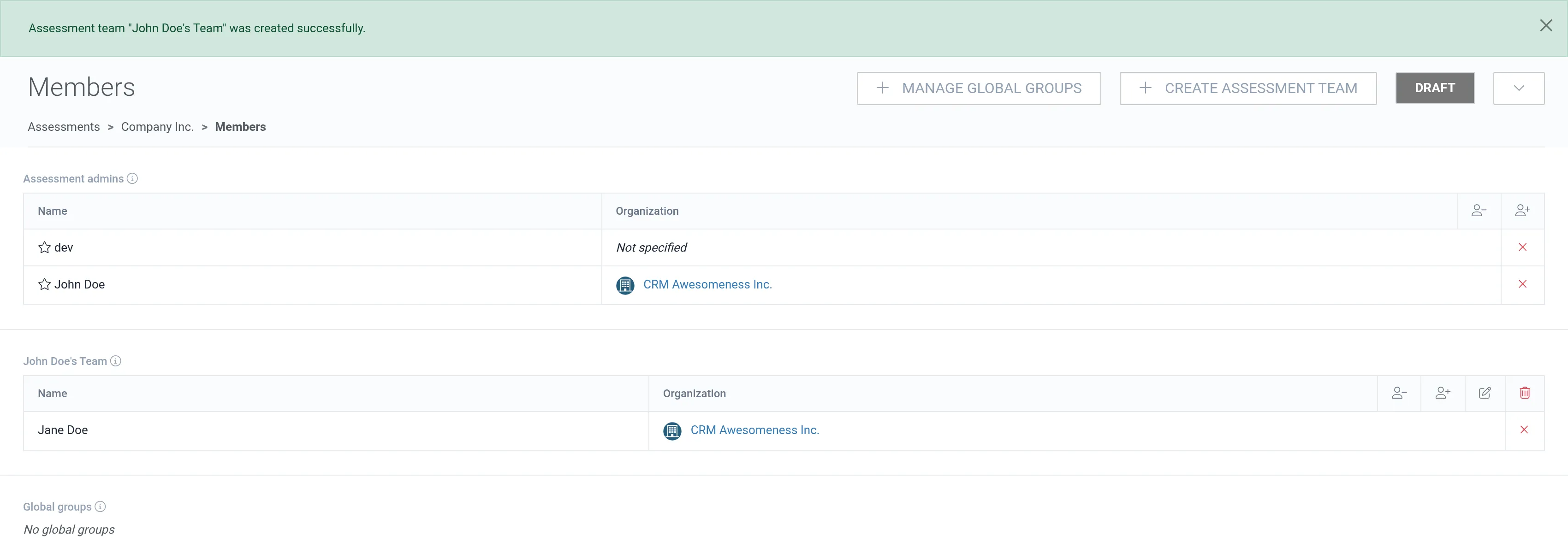
Now Jane Doe has access to the assessment “Company Inc.” as an assessment team member. She can edit the assessment content but cannot give other users access to the assessment.
Create assessment with inherited members
Section titled “Create assessment with inherited members”Now that we have created an assessment team into the root assessment “Company Inc.”, let’s create a sub-assessment for it while inheriting the parent assessment members.
1. Navigate back to Assessments.
2. Click + Create assessment.
3. Select the parent assessment in the Parent assessment field.
4. Fill in the assessment details.
5. Enable the checkbox for inheriting members from the parent assessment (enabled by default).
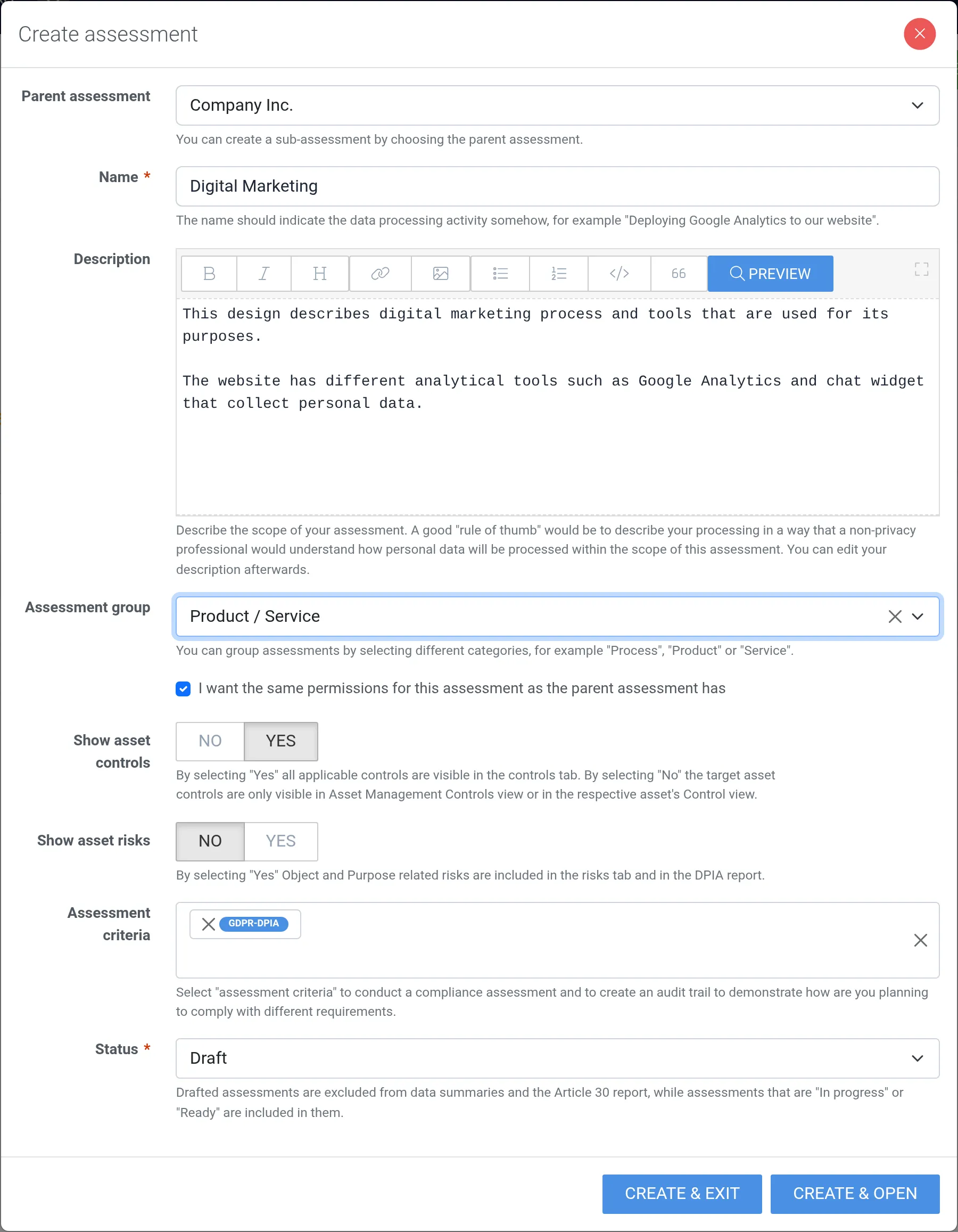
6. Click Create & open.
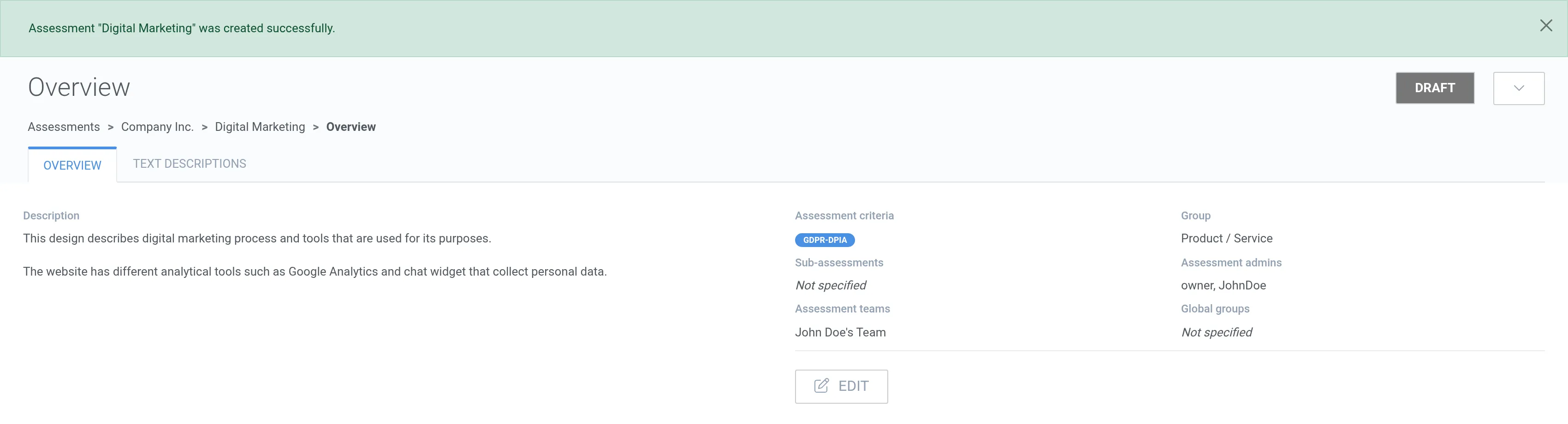
As the parent assessment and member inheritance were selected, the assessment admins and teams were inherited from the parent assessment “Company Inc.”.
Remove the assessment team members
Section titled “Remove the assessment team members”1. Click the assessment team’s remove members button (person icon with a minus sign).
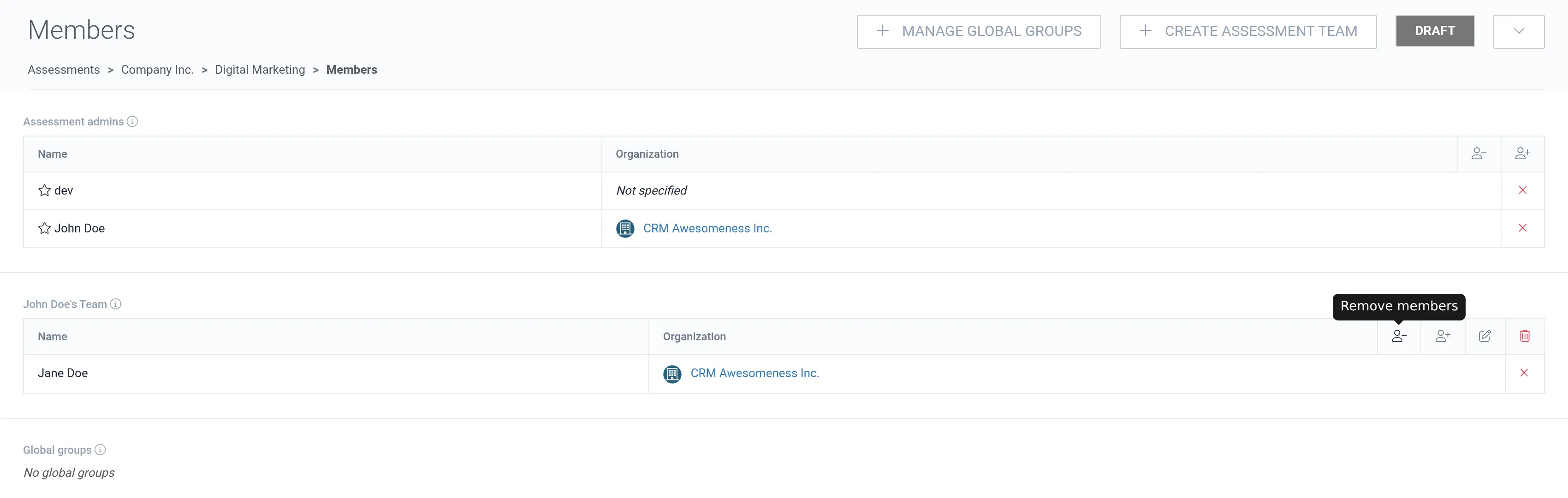
2. Select the member(s) from the assessment team.
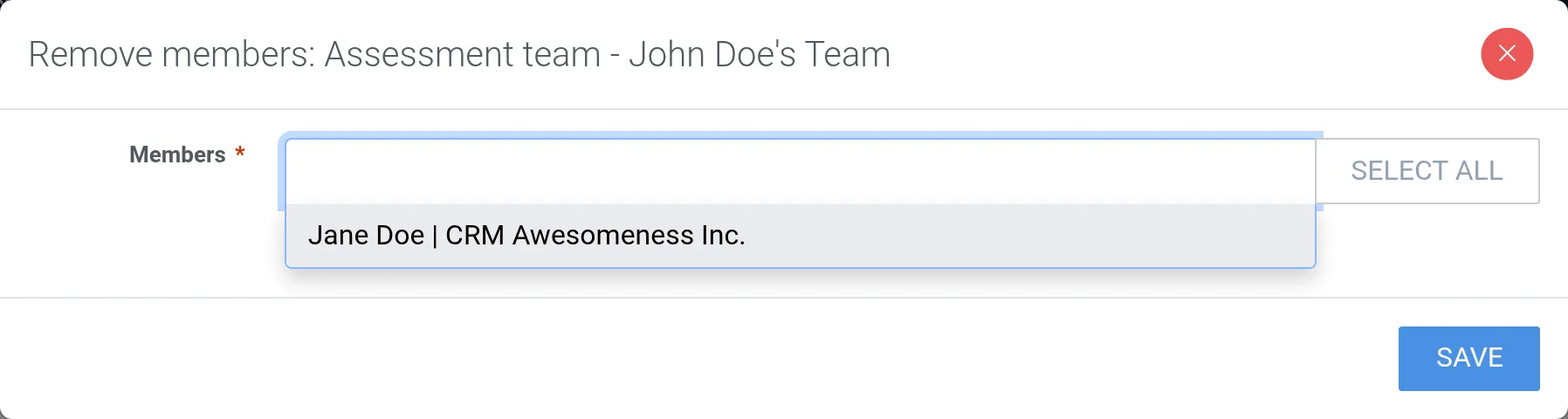
3. Click Save.
Jane Doe cannot access the assessment “Digital Marketing” anymore.
Add assessment team members
Section titled “Add assessment team members”1. Click the assessment team’s add members button (person icon with a plus sign).
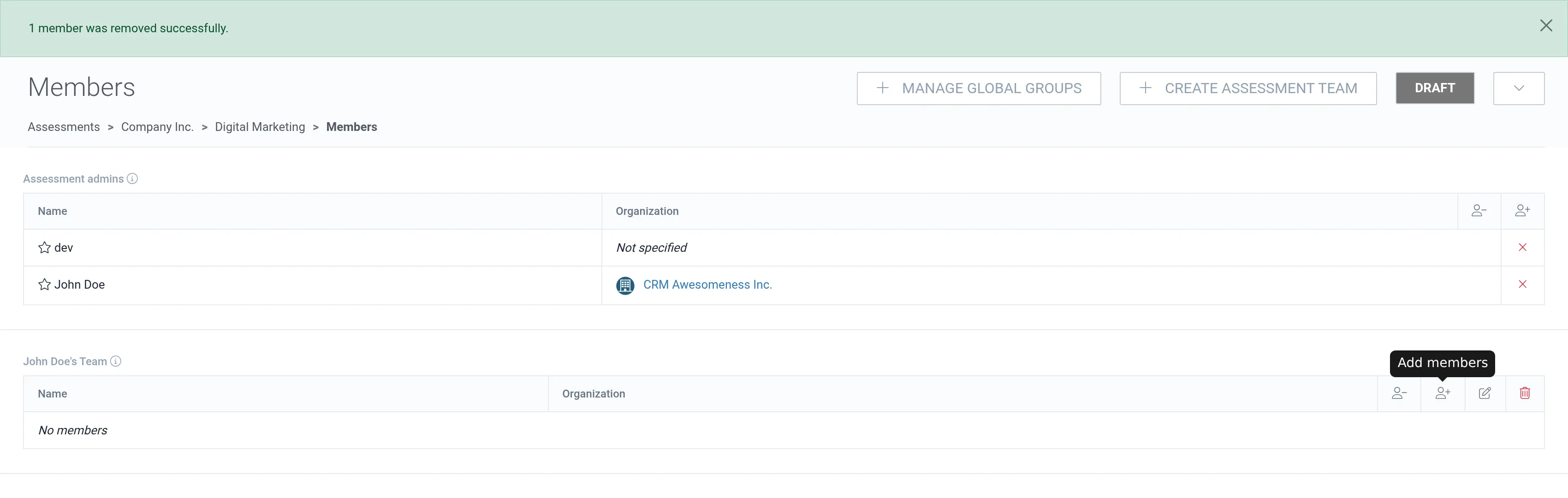
2. Select the member(s).
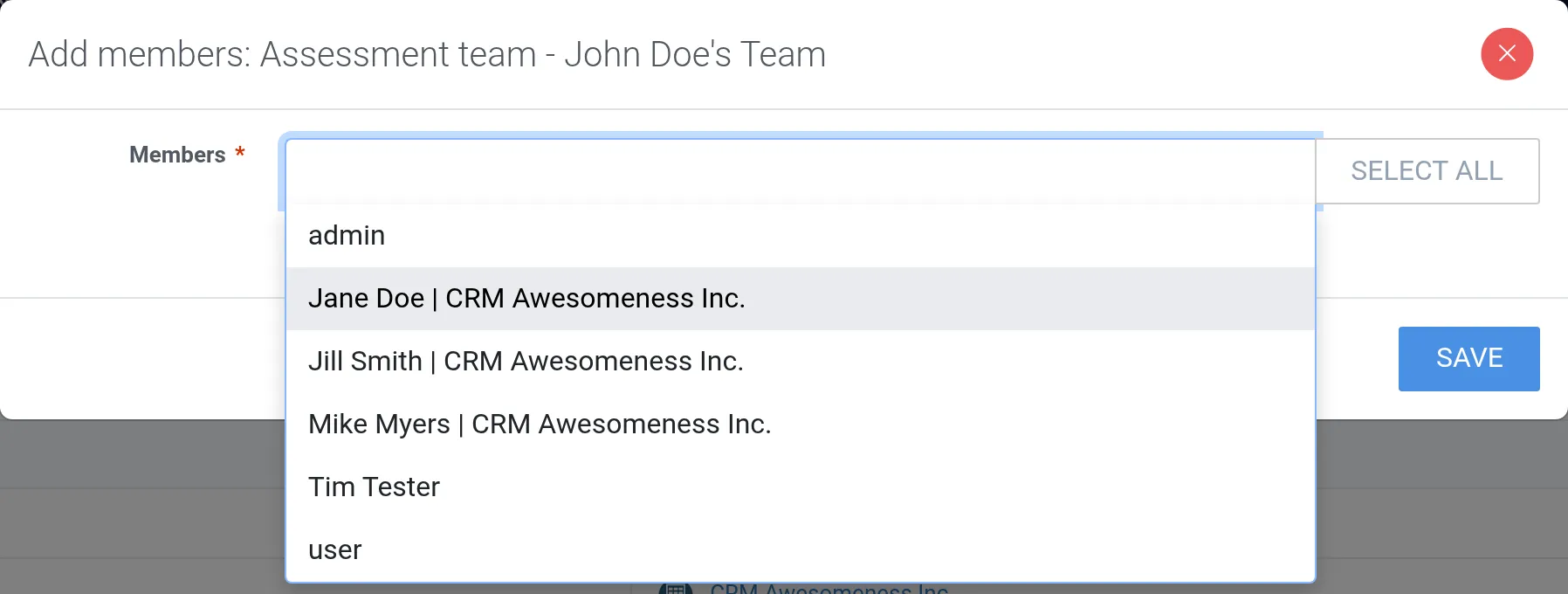
3. Click Save.
Now Jane Doe has access to the assessment “Digital Marketing” again.
Edit the assessment team name
Section titled “Edit the assessment team name”1. Click the assessment team’s edit button (pencil icon).
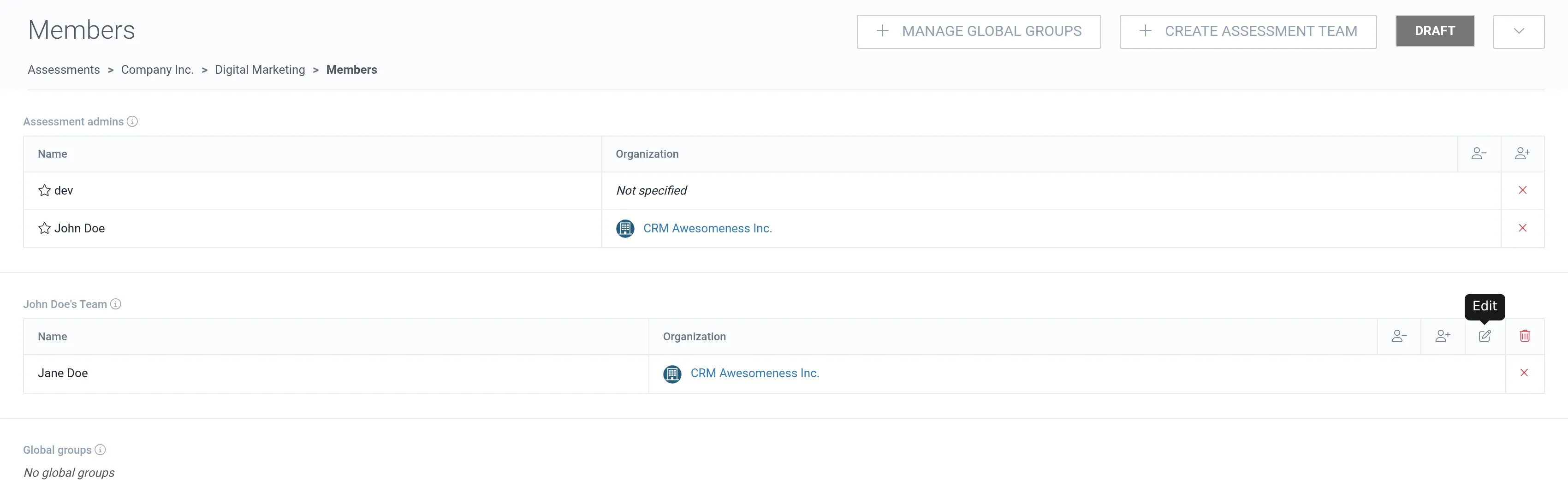
2. Change the assessment team name. In this example the assessment team name is simplified.
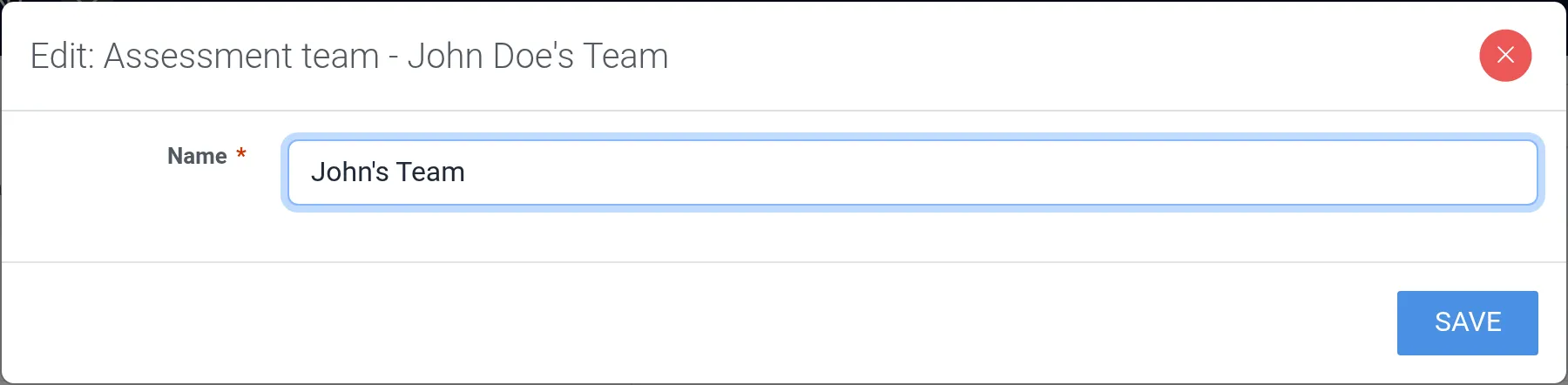
3. Click Save.
Delete assessment team
Section titled “Delete assessment team”1. Click the assessment team’s delete button (trash can icon).
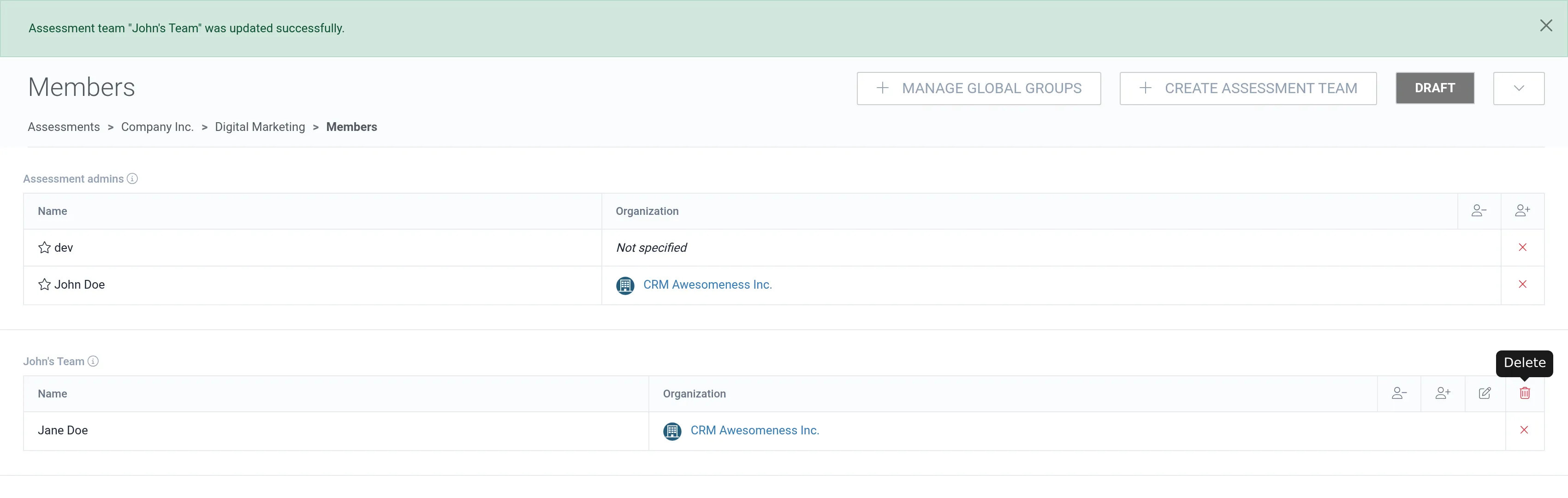
2. Confirm by clicking Delete.
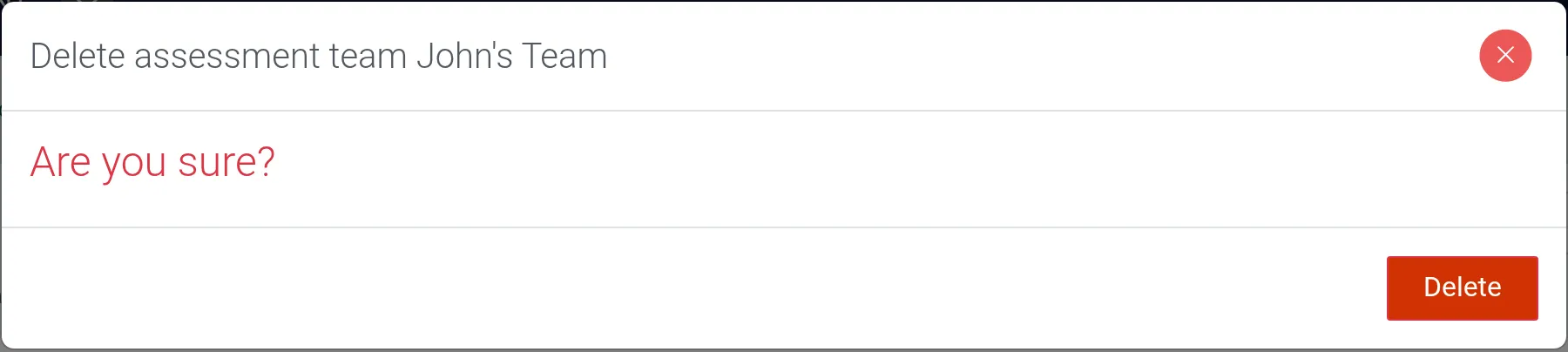
Now Jane Doe again does not have access to the assessment “Digital Marketing”.
Inherit parent assessment members
Section titled “Inherit parent assessment members”1. Navigate back to Assessments.
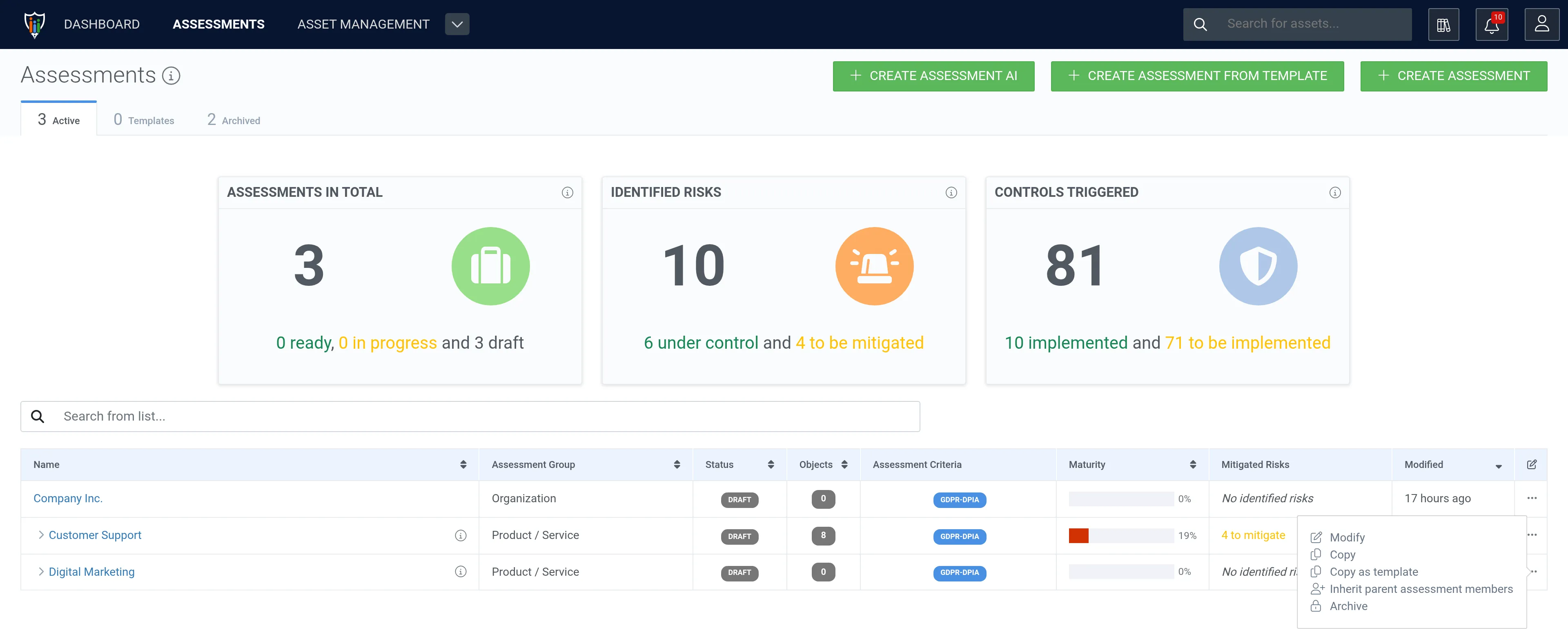
2. Open the row actions menu (⋯) of the assessment and select Inherit parent assessment members.
The dialog shows the users of the parent assessment and highlights the assessment admins and members that will be inherited by the target assessment.
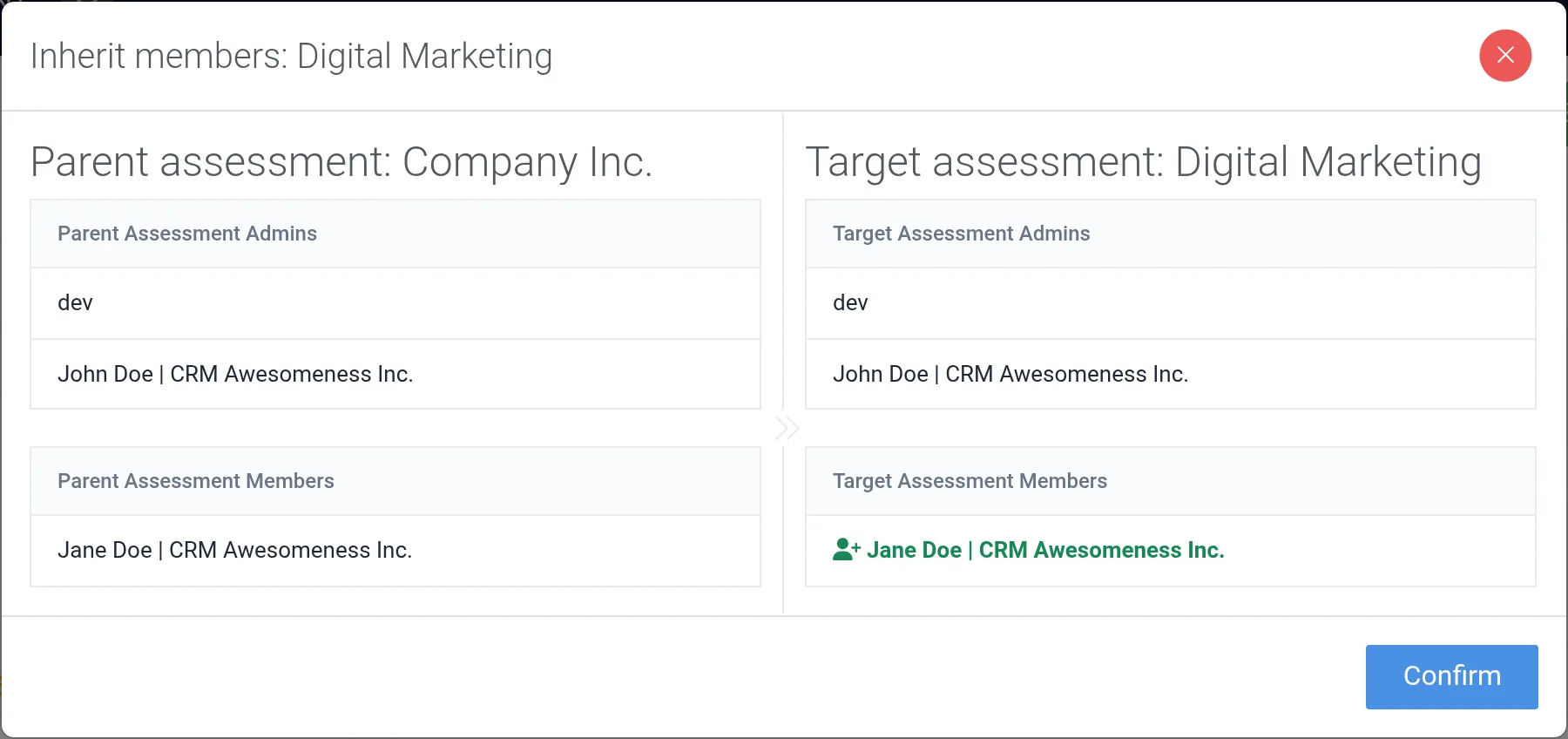
3. Click Confirm.
Let’s see what happened to the members of the Digital Marketing assessment.
4. Open the assessment.
5. Click Members.
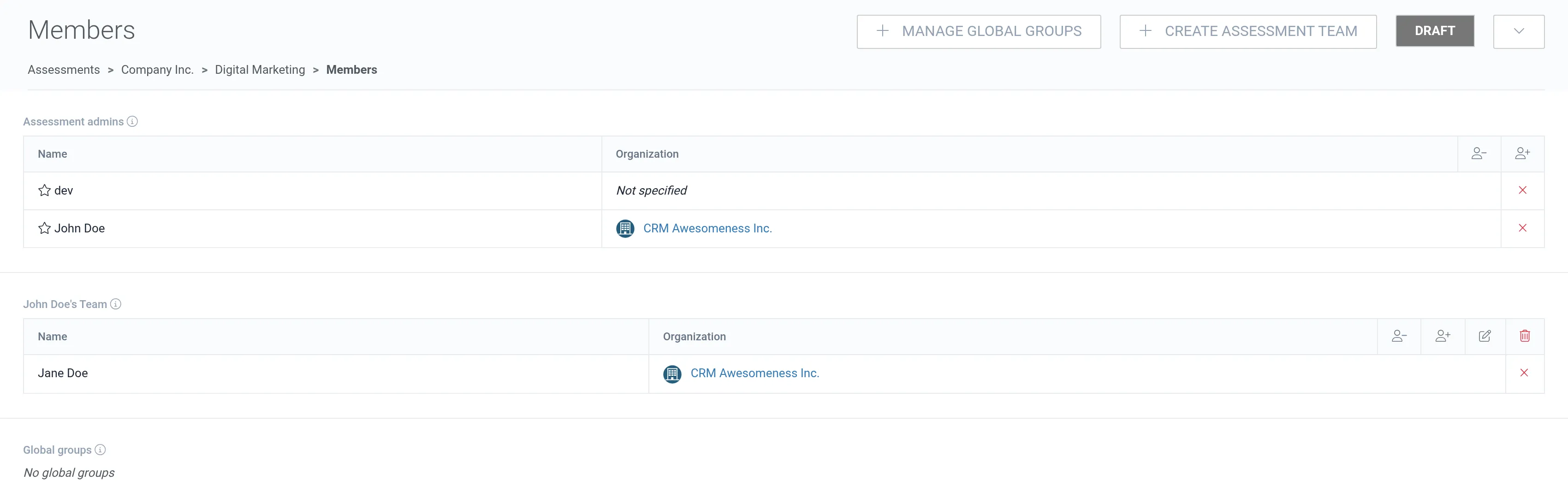
The assessment team “John Doe’s Team” was inherited from the parent assessment “Company Inc.”, and Jane Doe has access to the assessment “Digital Marketing” once more.