Managing assessments
Copy assessments
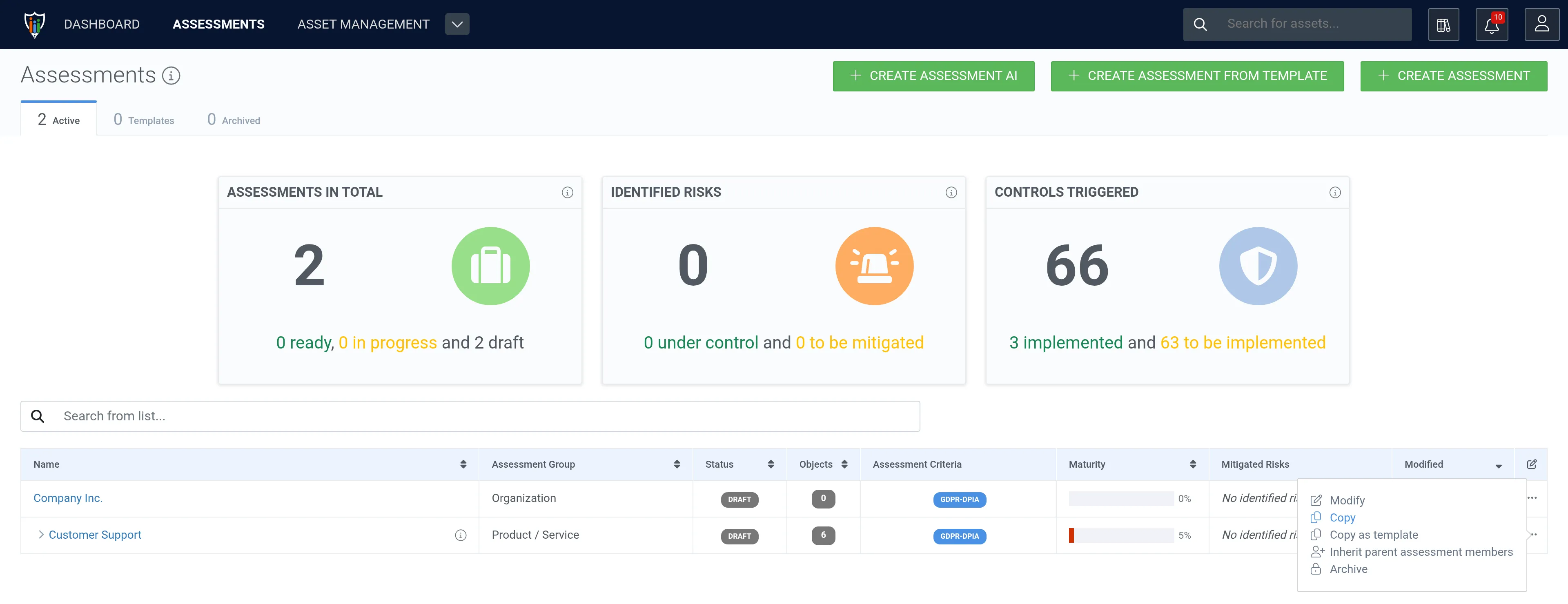
Section titled “Copy assessments”1. In the assessments list, open the row actions menu (⋯) of the assessment and select Copy.
2. Name the new copy. If you are copying an assessment that has sub-assessments, also decide whether the sub-assessments are copied as well.
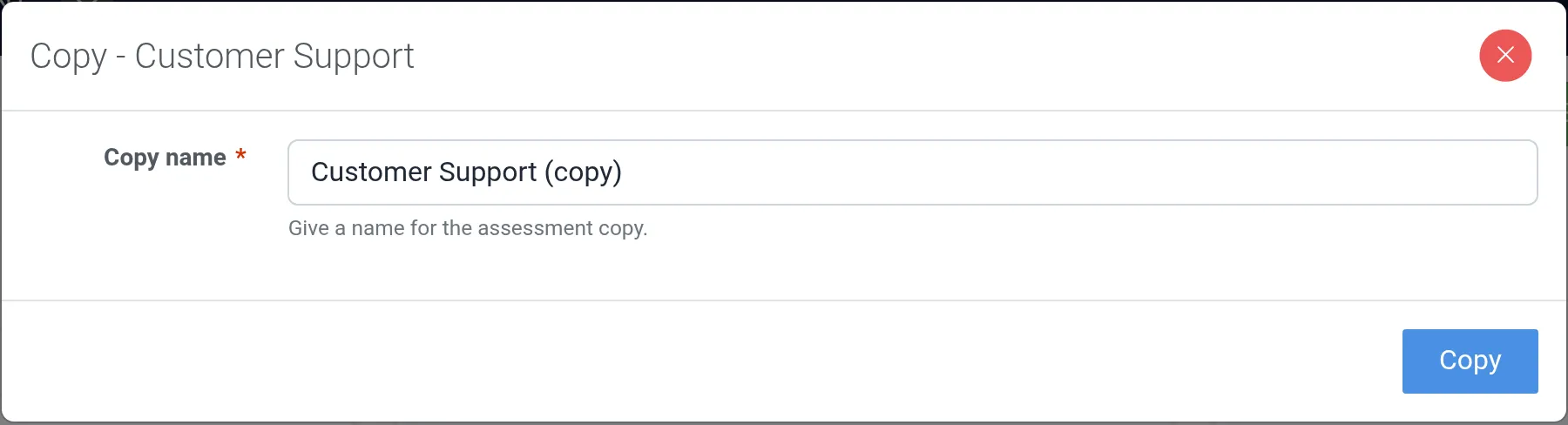
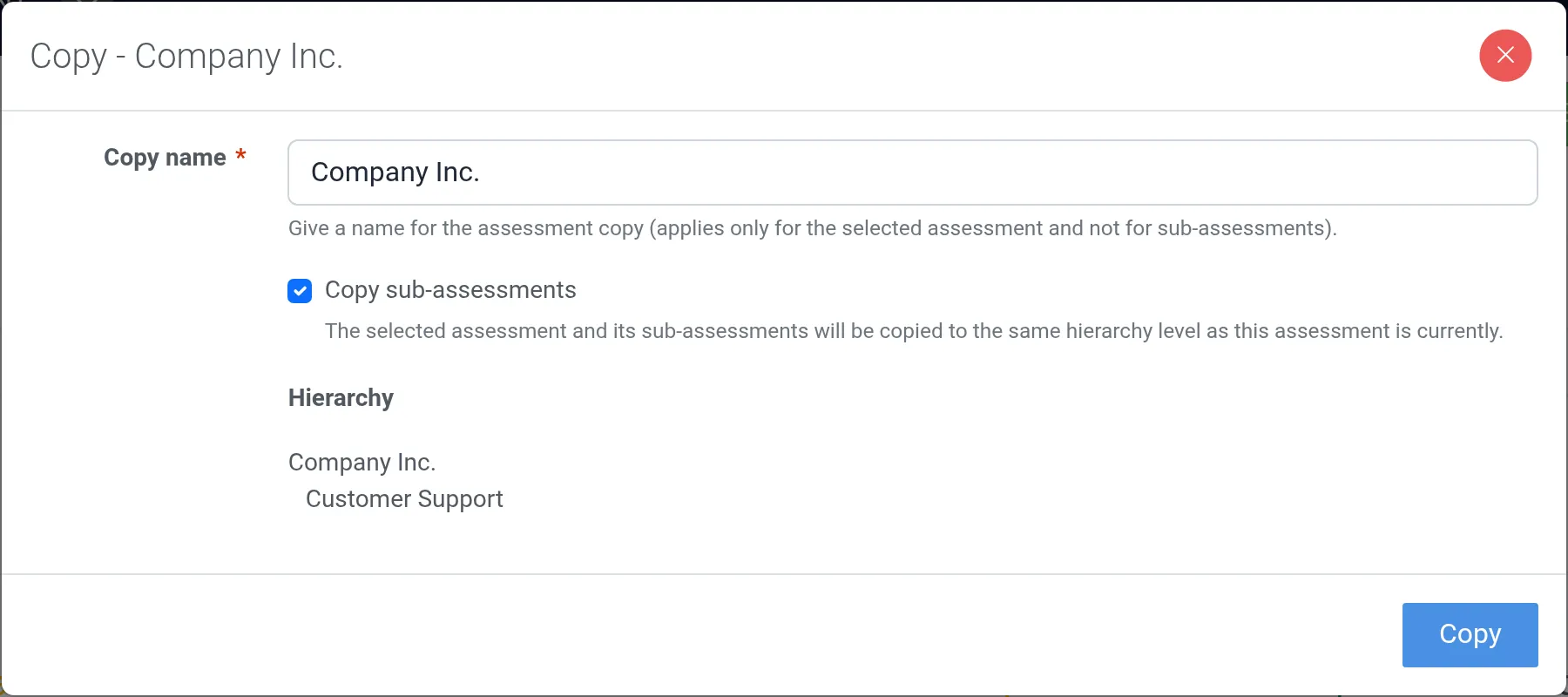
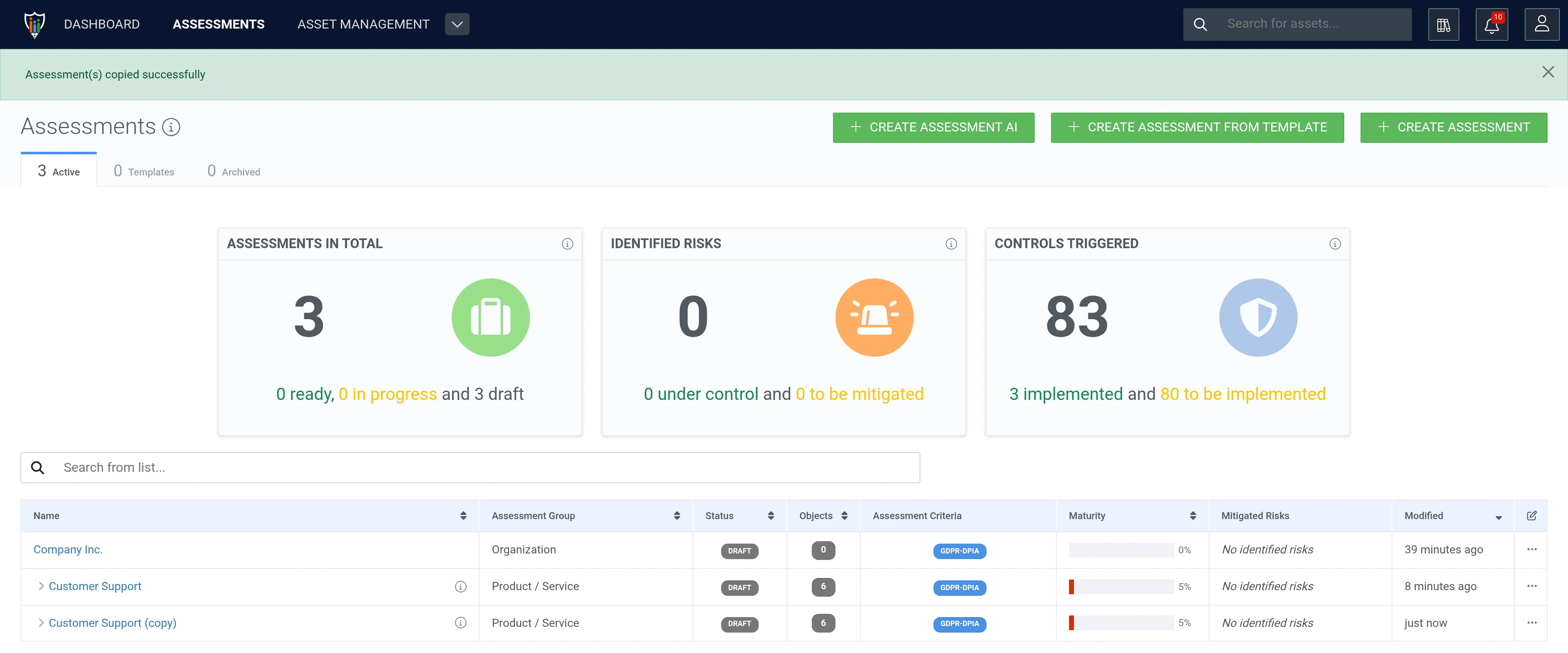
3. To create the copy or copies, click Copy.
Inheriting assessment members
Section titled “Inheriting assessment members”As a normal user, check out Members – Inherit parent assessment members.
If you are an admin user, refer to Group permissions – Attach global groups to assessments.
Archive assessments
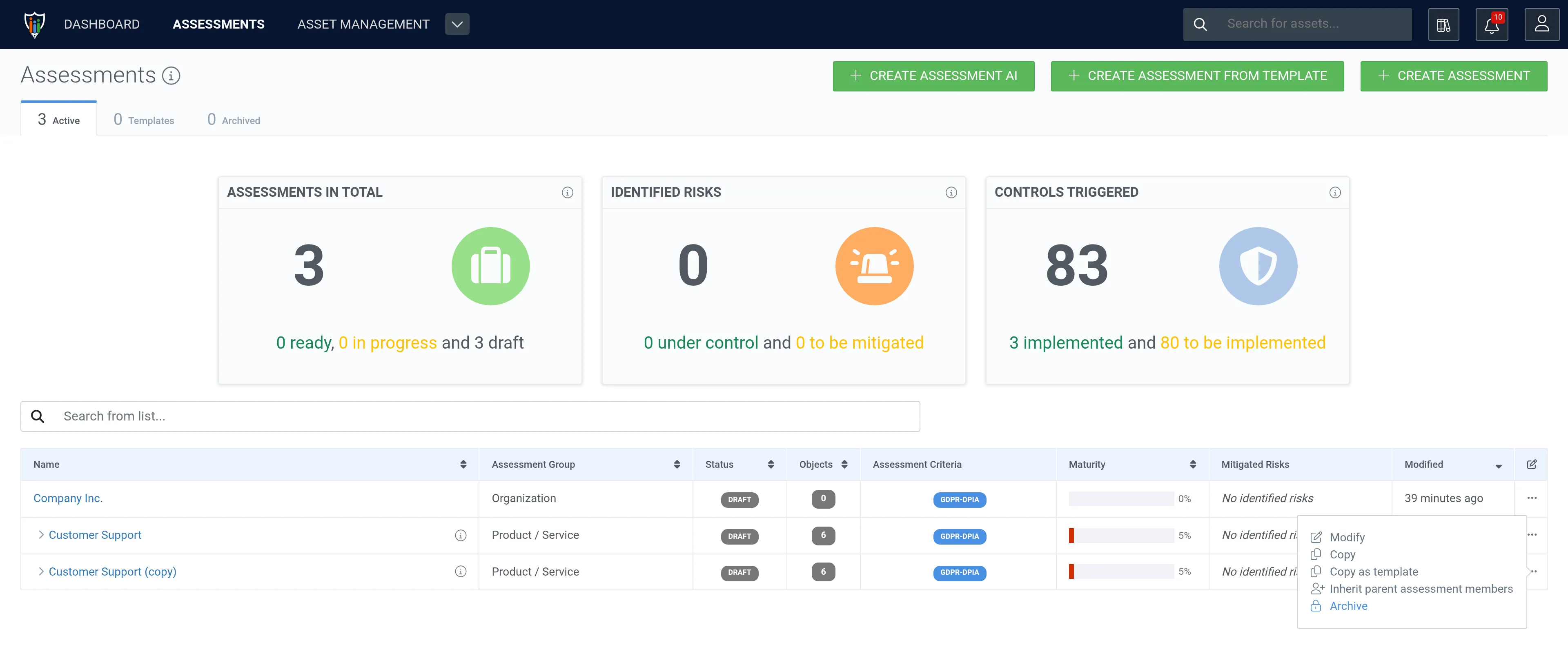
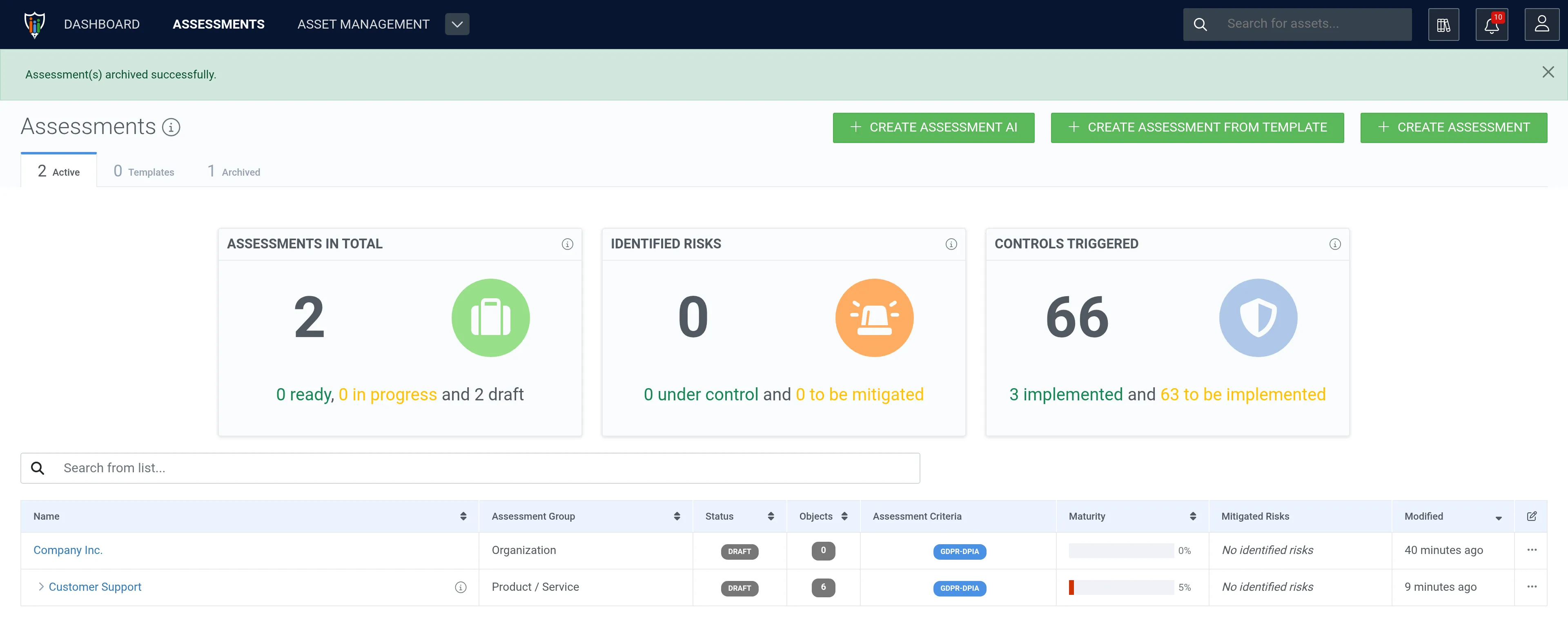
Section titled “Archive assessments”1. Open the row actions menu (⋯) of the assessment and select Archive.
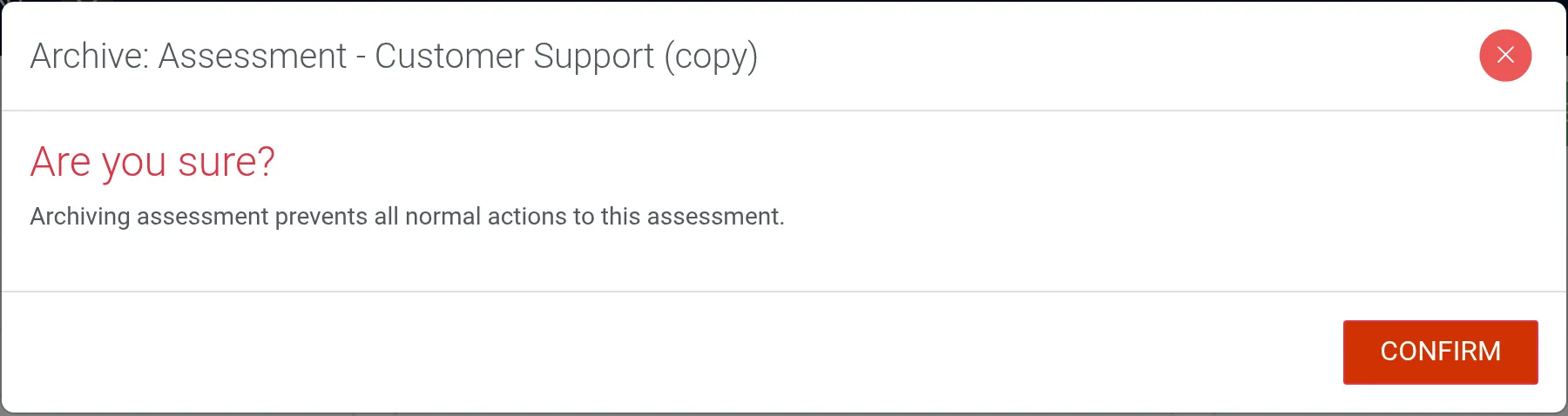
2. To archive the selected assessment (and its sub-assessments, if there are any), click Confirm.
Deleting assessments
Section titled “Deleting assessments”1. Open the assessment.
2. Click Delete in the drop-down menu (⌄) next to the status button.
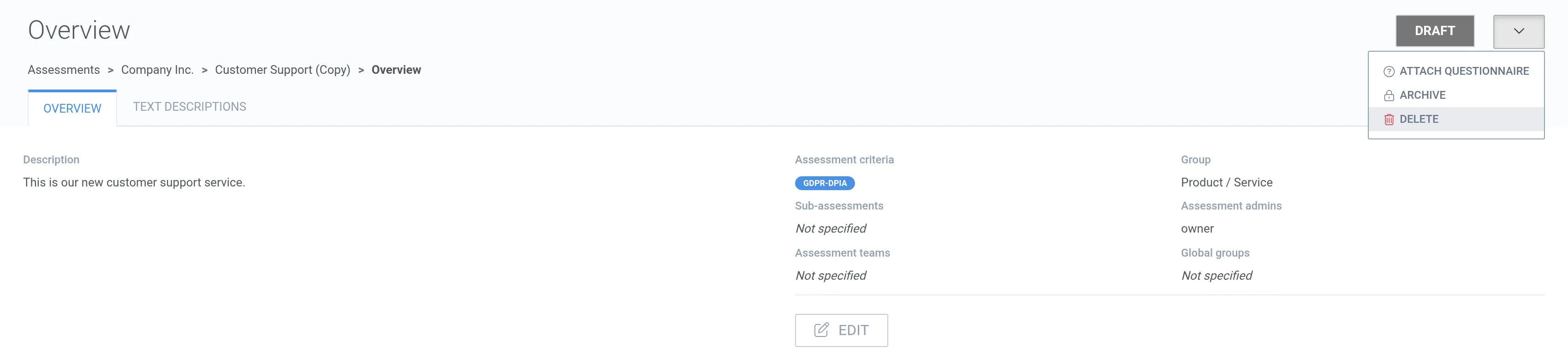
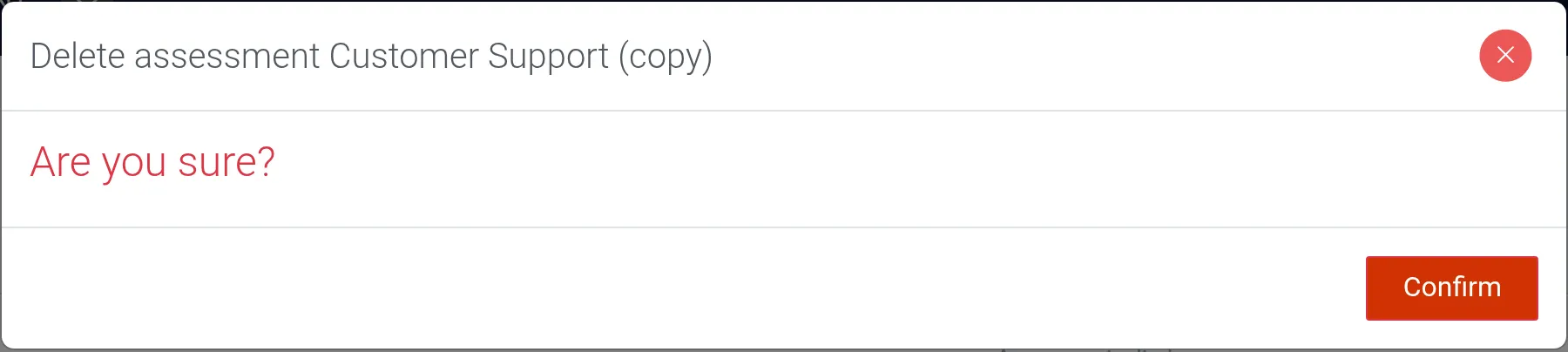
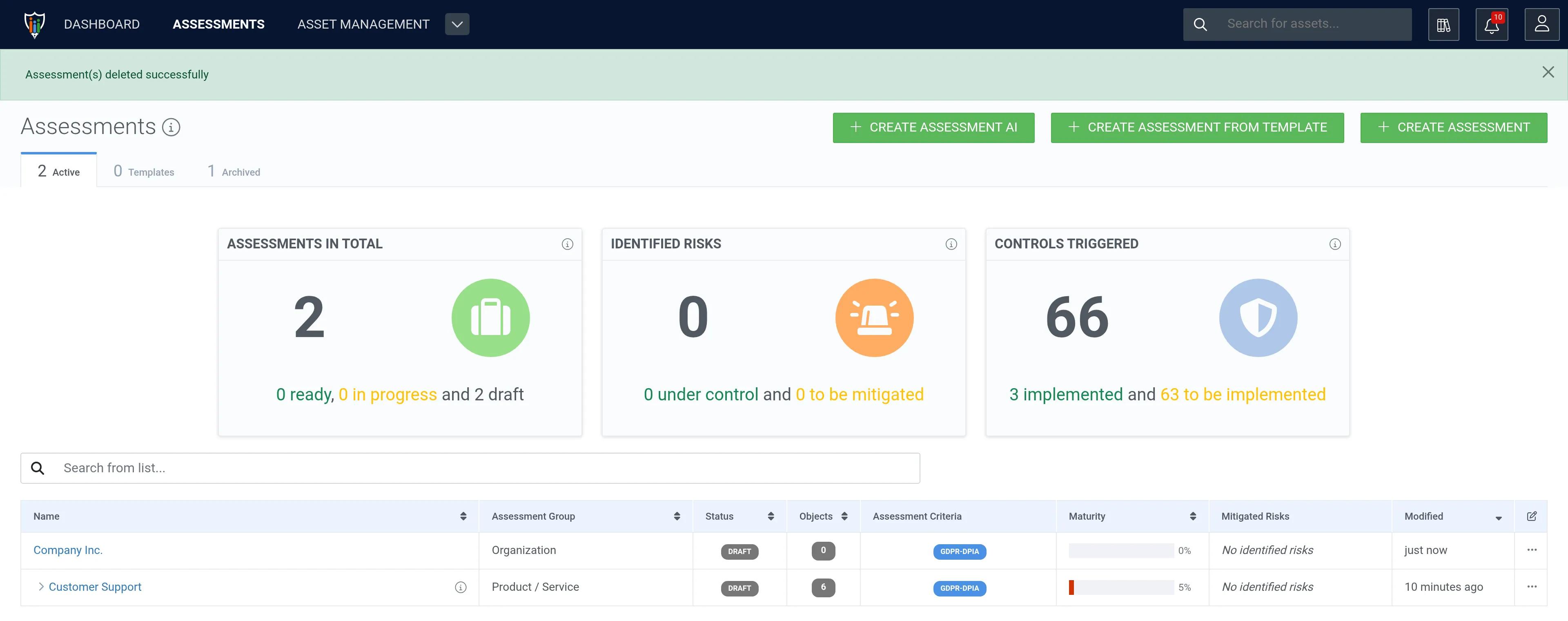
3. If you are sure, delete the assessment and its sub-assessments by clicking Confirm.