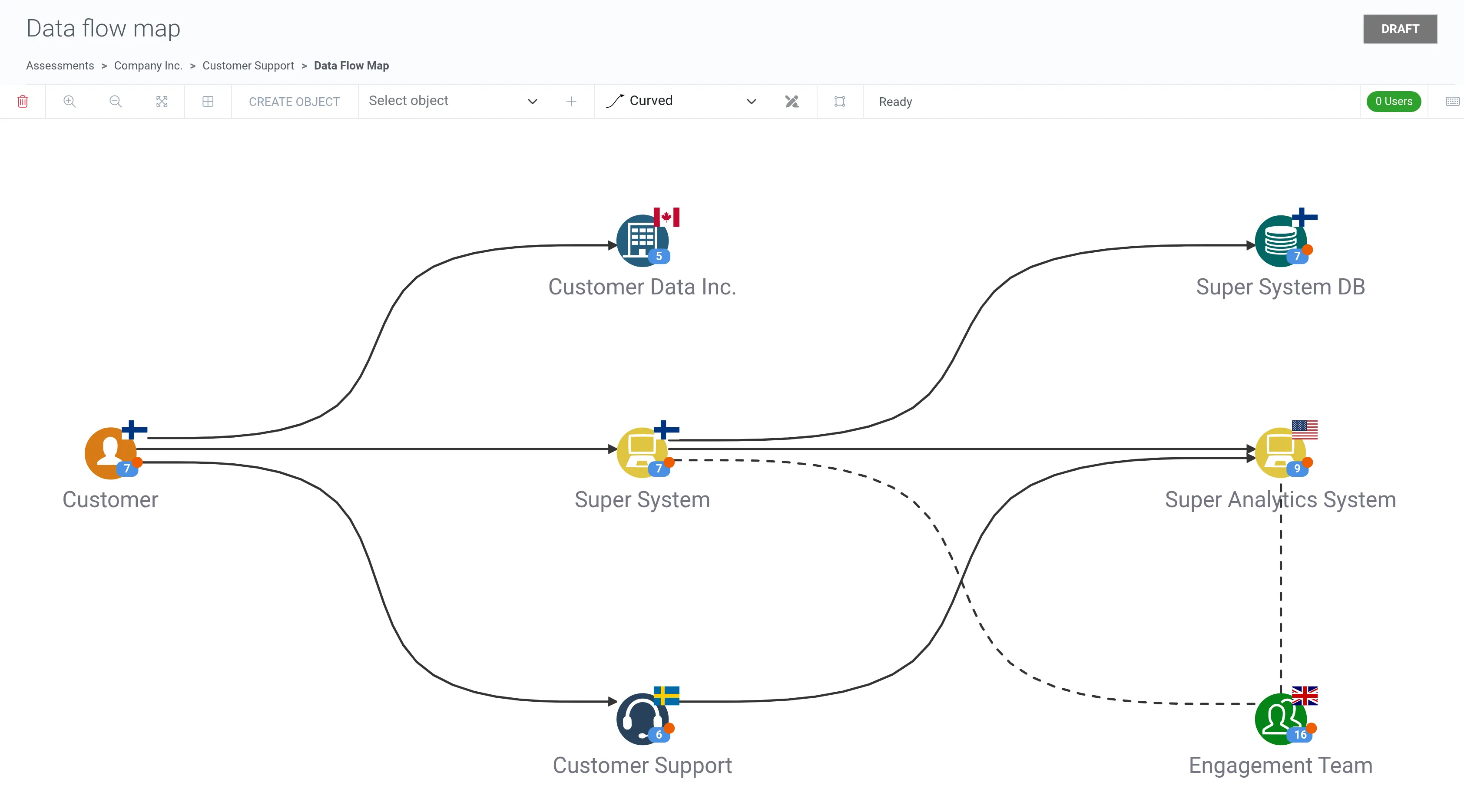
Data flow
How to add existing objects
Section titled “How to add existing objects”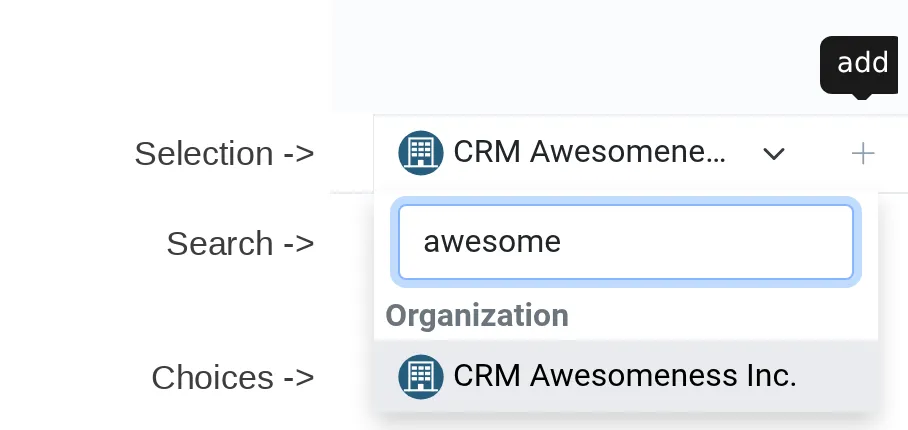
1. Search for a specific object by typing a part of the object name into the search box, such as “awesome”.
2. Select the right object.
3. The chosen object is now selected in the selection box.
4. Click + to add the selected object into the data flow map.
How to connect objects
Section titled “How to connect objects”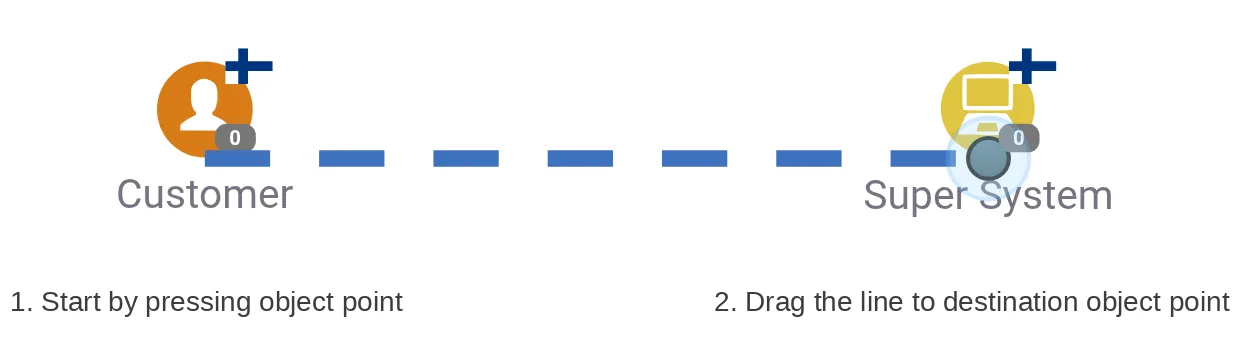
1. Start by pressing the object point.
2. Drag the line to the destination object point.
Connection types
Section titled “Connection types”There are two connection types: Transfer and Access.
Transfer
Section titled “Transfer”
Transfer connections are used to represent how data types originating from a data subject are being transferred between the following objects:
- Customer service
- Organization
- System
- Storage
Access
Section titled “Access”
Access connections indicate that a personnel role has access to data types in one of the following objects:
- System
- Storage
Typical cases
Section titled “Typical cases”Every data flow should start from the data subject category, the person whose information is processed.
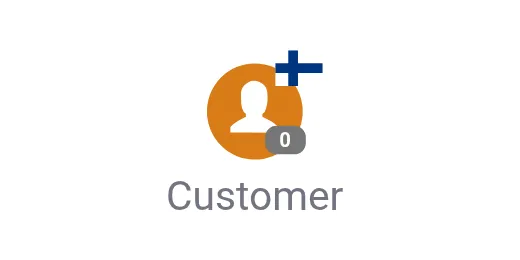
Usually a data subject’s personal data is processed in a system.
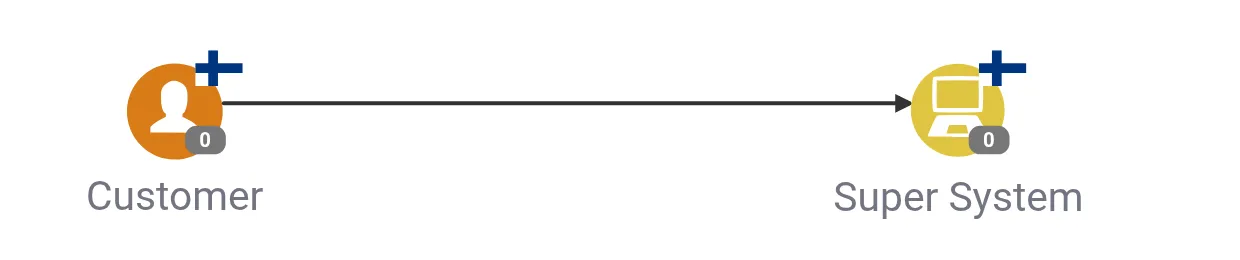
Usually there is also some kind of storage where the personal data is stored.

Personal data can also be transferred from one system to another.

Organization (3rd Party) is an indirect source of the data subject’s information. Data is processed in a system (Super Analytics System).

Sometimes customer service (Customer Support) is the source of information. Customer service staff collect the data of the data subject (Customer) and enter it into one or more systems.

Personnel role (Engagement Team) has access to the personal data of a data subject via a system (Super System).

Adding accesses through connections
Section titled “Adding accesses through connections”Accesses are created when a connection has a transfer method, transferring person and linked data types.
Consider a case where Customer contacts Customer Support and the separate Engagement Team types the data into the Super System. It can be visualized in the data flow map as follows.
1. Double click the connection between Customer Support and Super System.

2. Click Edit in the opened modal.
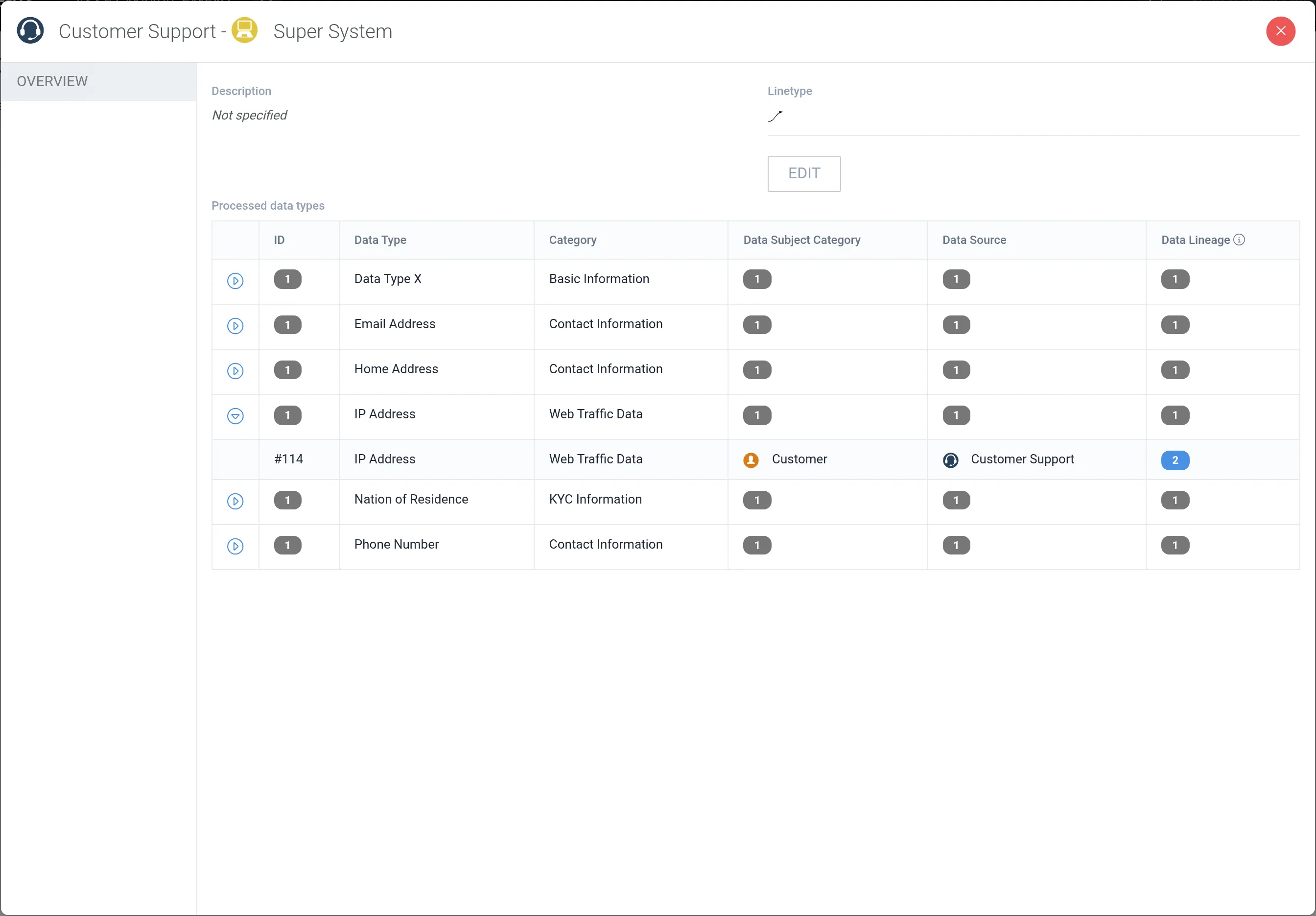
3. Select Typing transfer method (manual) as the Transfer method.
4. Select Engagement Team as the Transferring person.
5. Choose the relevant data types.
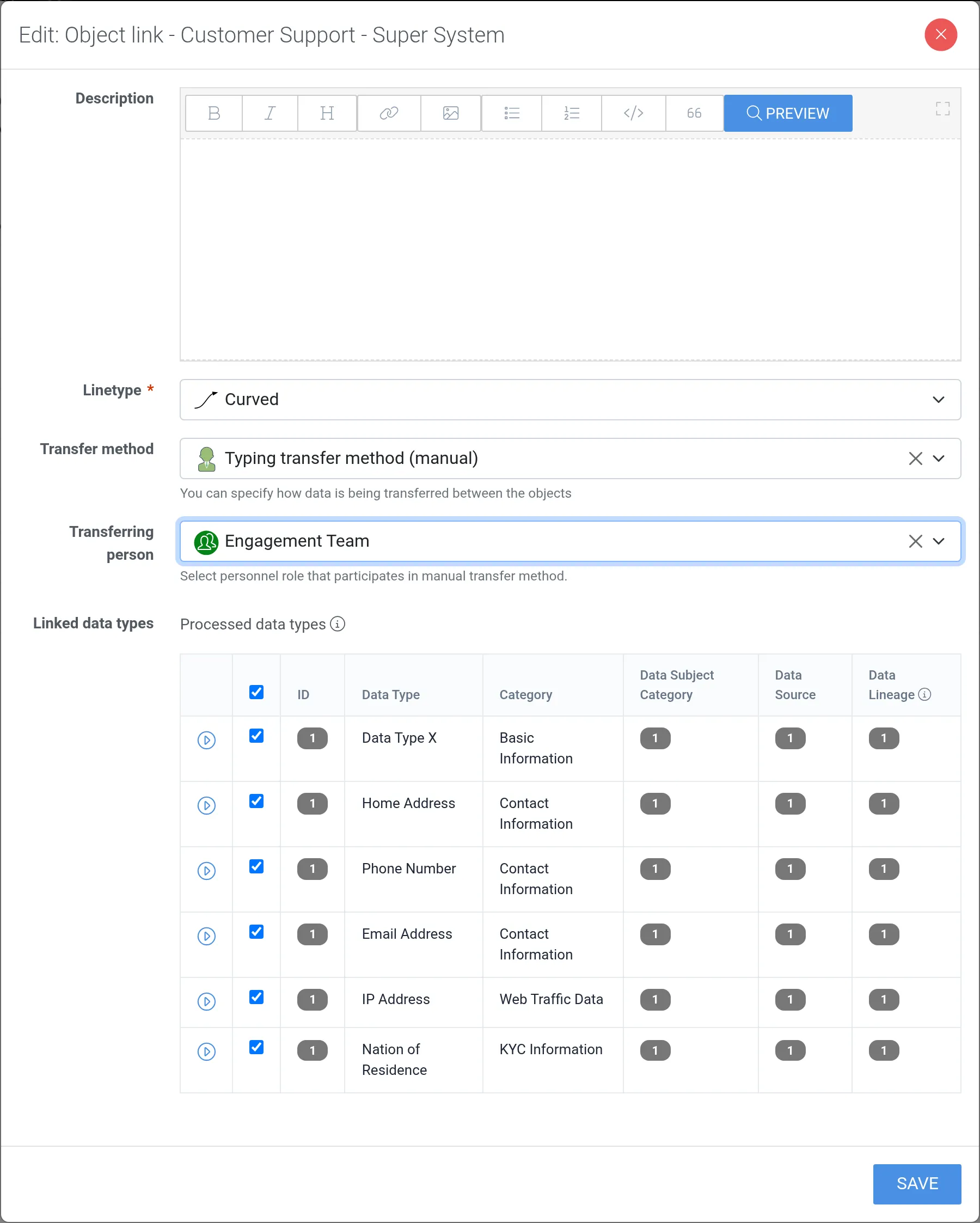
6. Click Save.
7. Return to the data flow map by closing the modal with the X button.
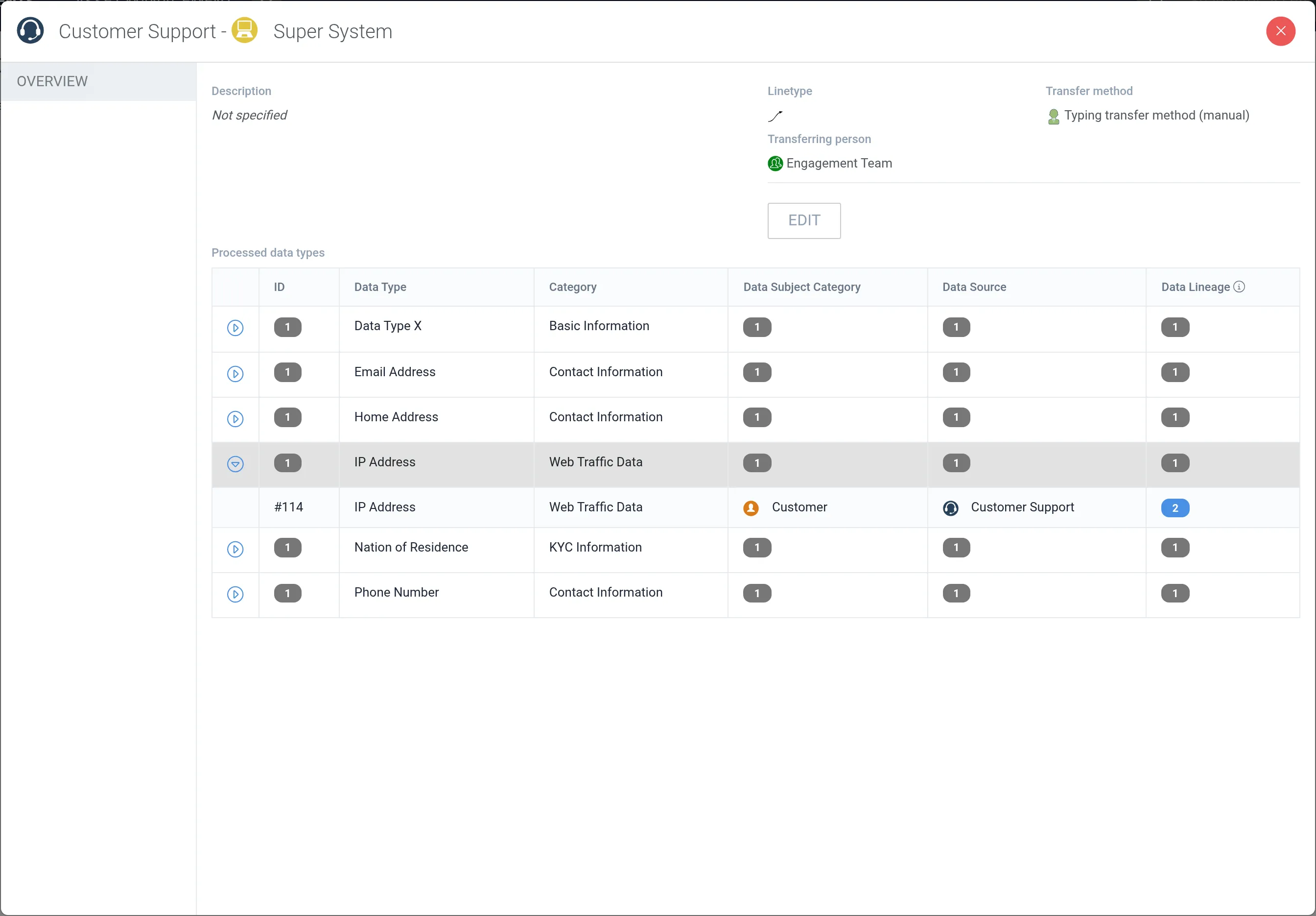

8. Double click Super System.
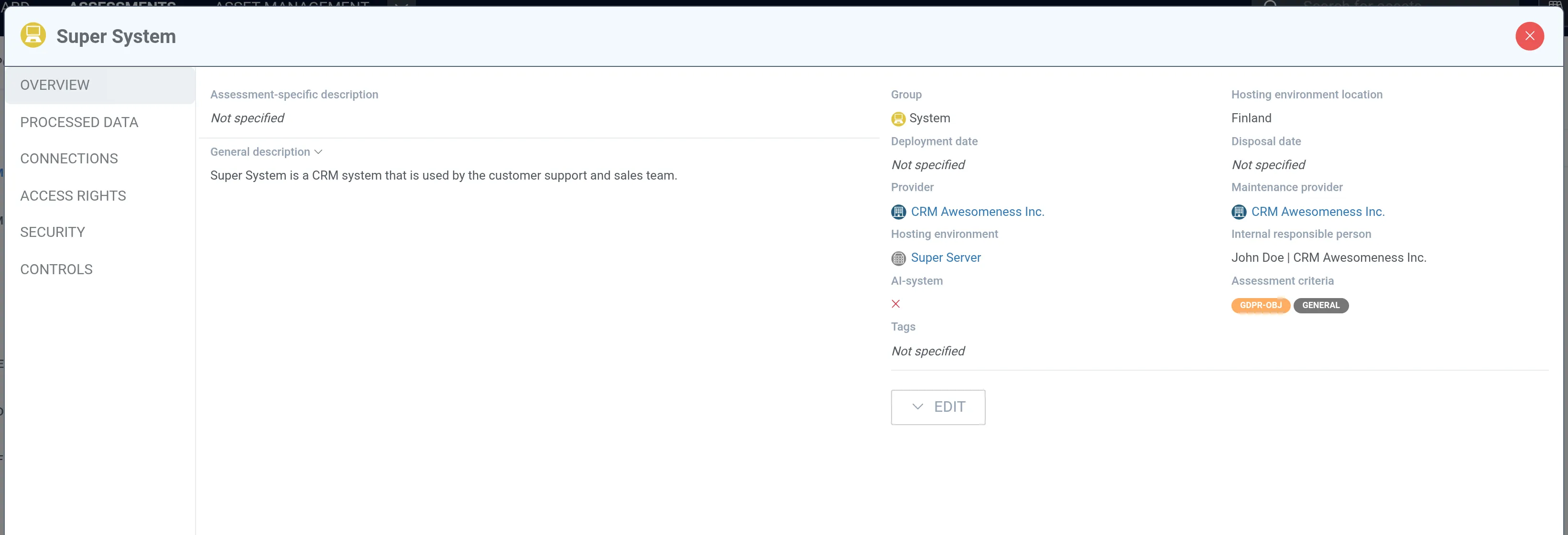
9. Navigate to the Access rights tab.
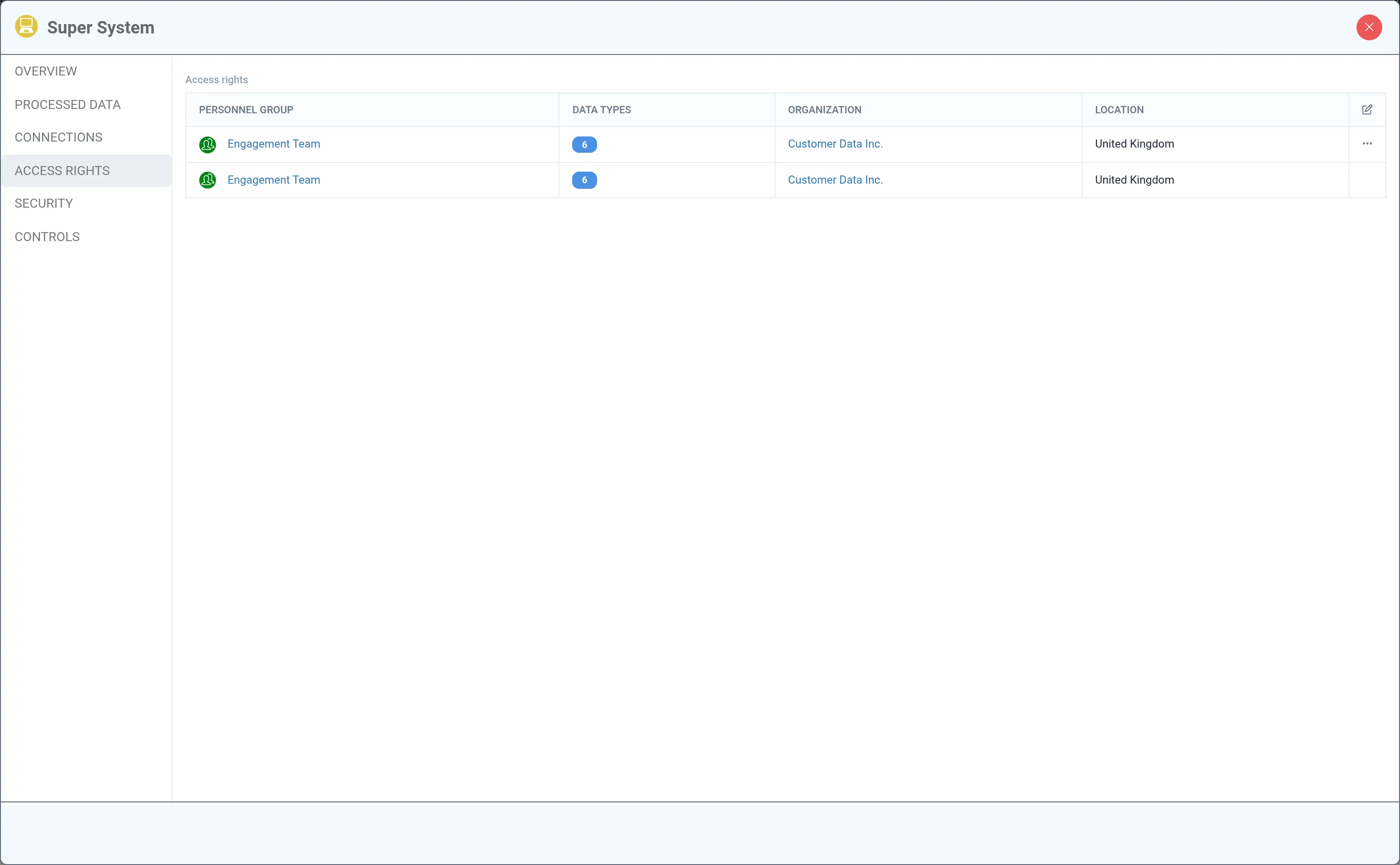
Engagement Team now has access to the previously selected and linked data types between Customer Support and Super System.
Example of an assessment data flow
Section titled “Example of an assessment data flow”