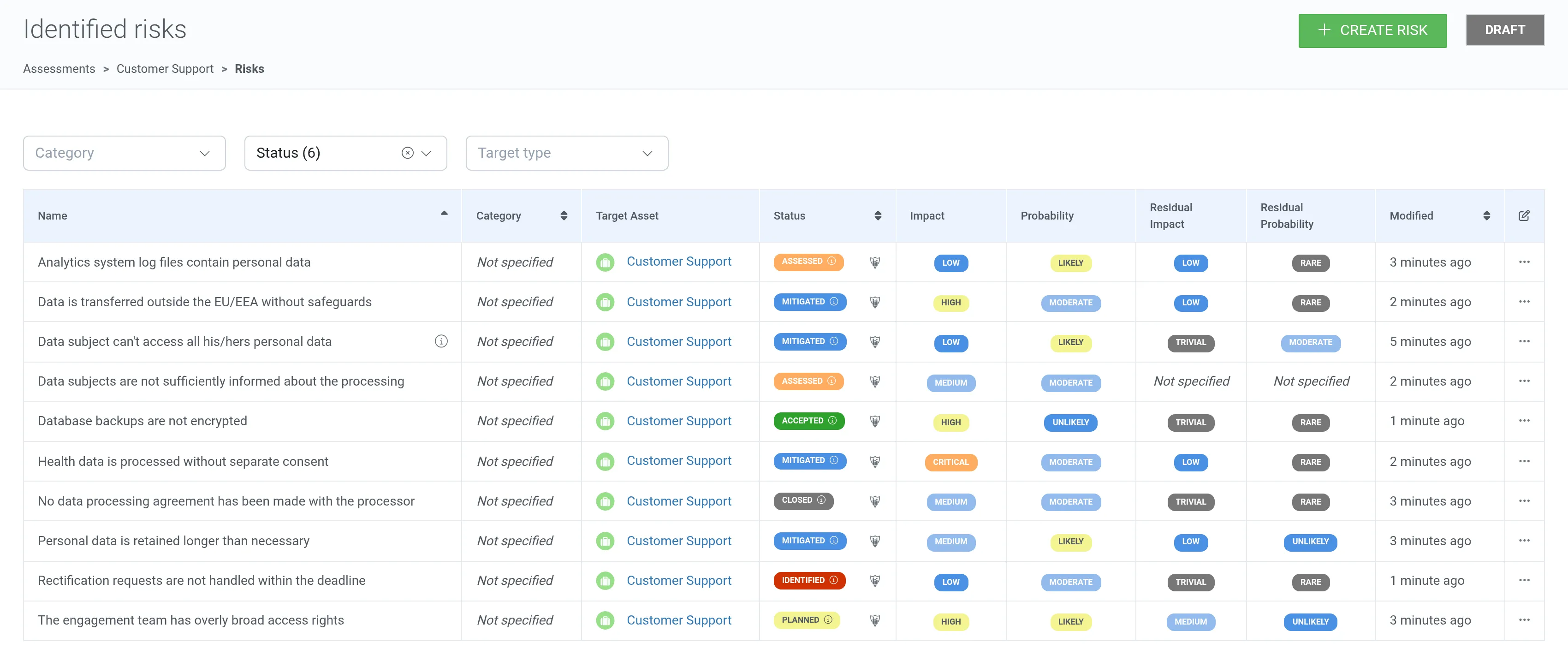
Risks
Navigate to Risks in the assessment’s navigation panel.

1. Click + Create risk.
2. Name the risk, and optionally select a risk category and a risk owner and describe the risk.
3. Select the impact and probability of the risk.
4. Under Risk mitigation and current status, select the Risk status. A new risk is usually Identified.
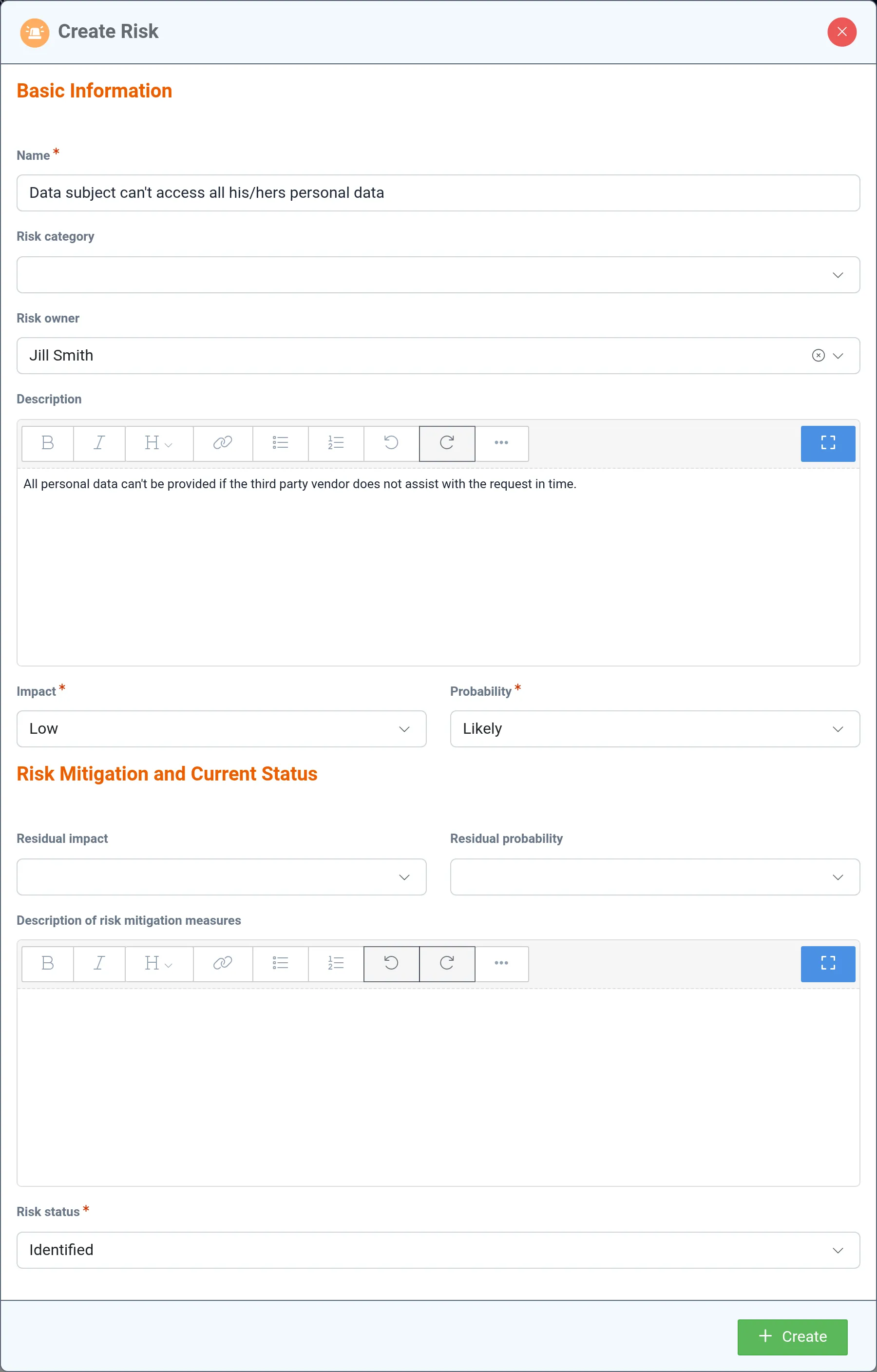
5. Click Create.
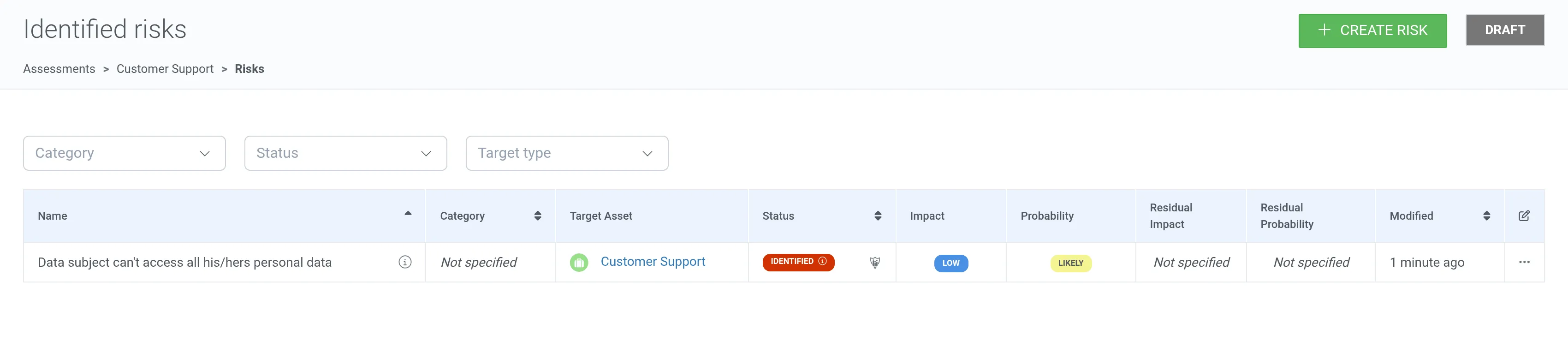
6. To modify a risk, open the row actions menu (⋯) of the risk and select Edit.
7. Describe the measures taken to mitigate the risk, select the residual impact and residual probability, and change the Risk status to Mitigated.
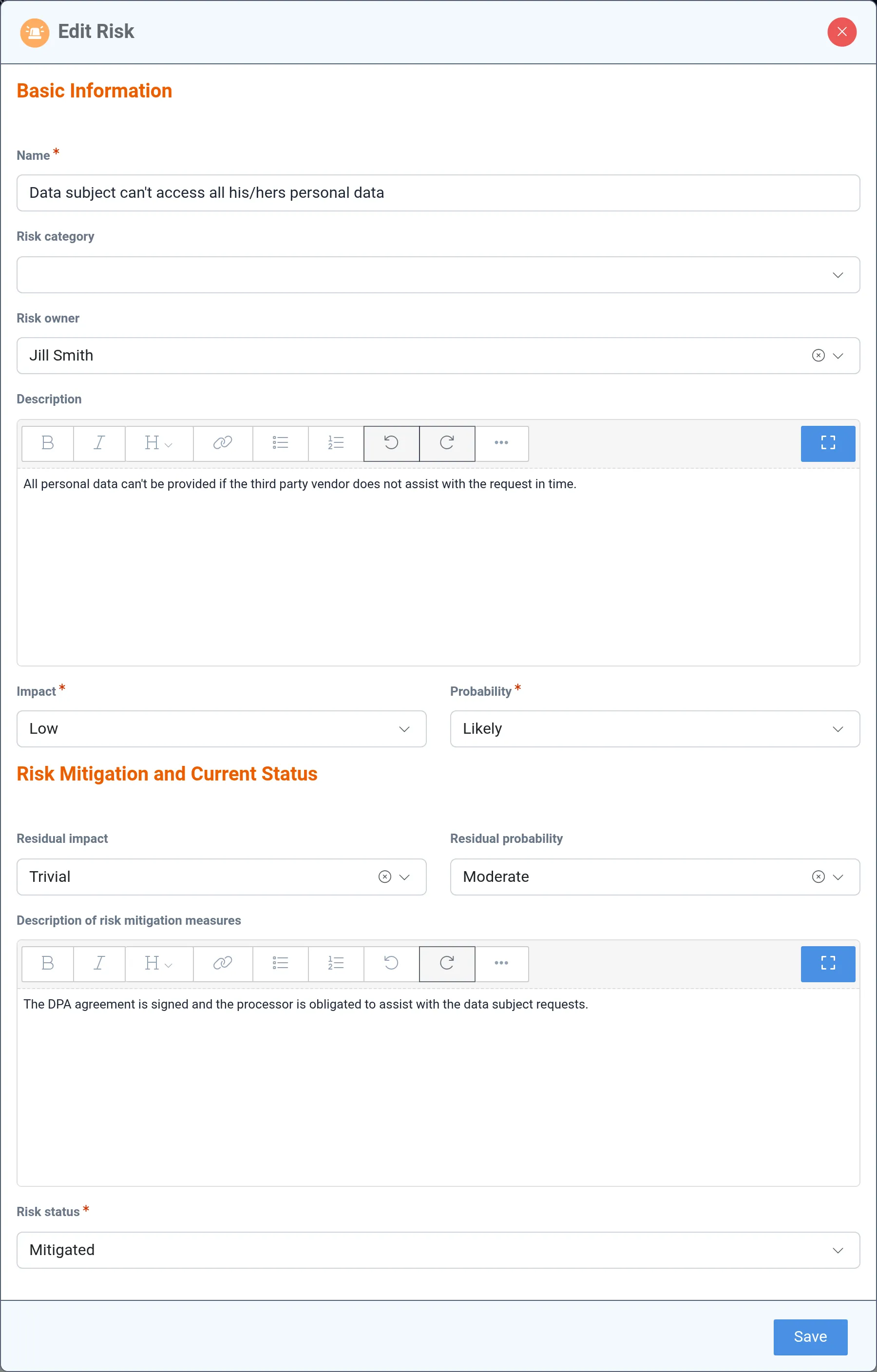
8. Click Save.

Deleting
Section titled “Deleting”1. Open the row actions menu (⋯) of the risk and select Delete.

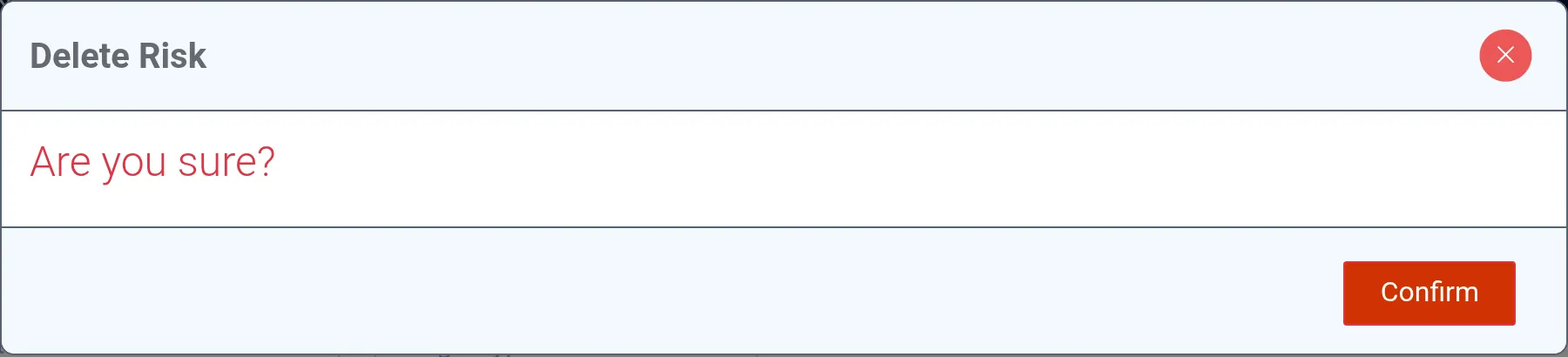
2. Confirm by clicking Confirm.
Example of an assessment’s risk assessment
Section titled “Example of an assessment’s risk assessment”