Organizations
Organizations in assessments
Section titled “Organizations in assessments”Organizations can be related to an assessment in two ways:
- Directly when the organization is created in or attached to the assessment.
- Indirectly when the organization is related to another object and that object is added to the assessment (see the sections below for these cases).
Automatically created processing activities
Section titled “Automatically created processing activities”Processing activities are automatically created for an organization when it is defined as:
- the provider or maintenance provider of a system object
- the provider or maintenance provider of a storage object
- the provider or maintenance provider of a hosting environment object
- the personnel role organization of a personnel role object.
These processing activities affect all assessments that the objects described above are related to, and they cannot be deleted. However, you can disable an automatic processing activity by editing it and selecting No, this organization does not participate in processing of personal data. The organization then has no role in processing.
Manually created processing activities
Section titled “Manually created processing activities”Processing activities can also be created for organizations and attached to a specific assessment. Note that the assessment cannot be changed after the processing activity has been created.
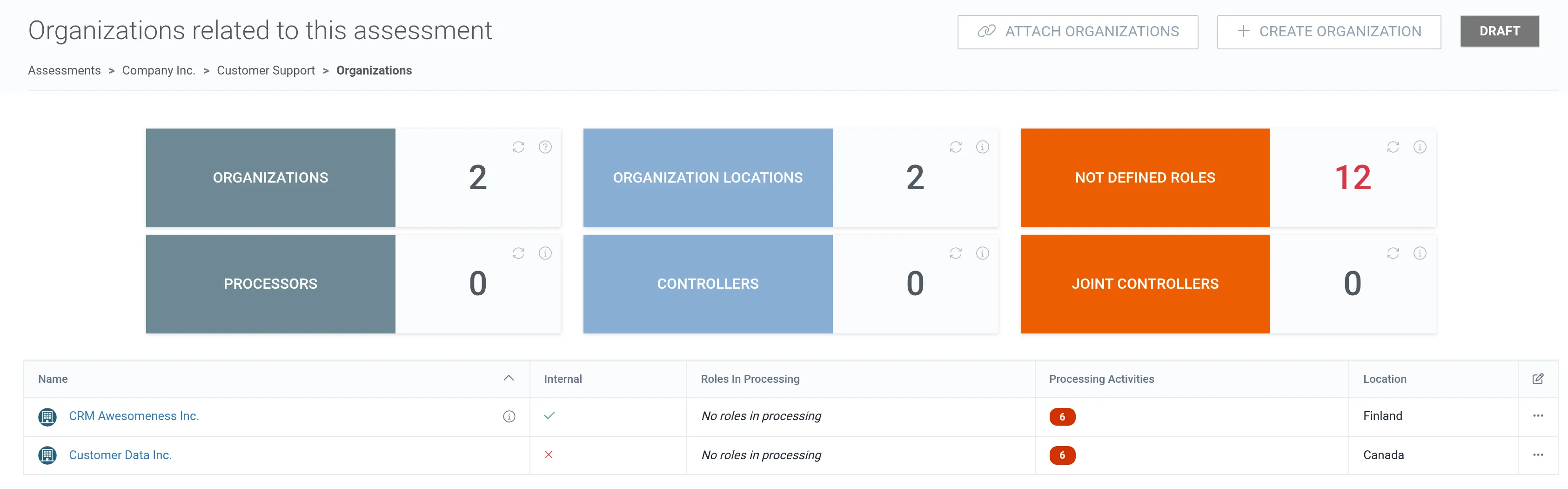
1. To define the role of an organization, open its processing activities from the Processing activities column. Edit an existing processing activity or add a new one.
2. Select the organization’s role in processing: controller, joint controller, processor, or no role in processing.
3. Add a start and end date. You can attach a file or link to the data processing agreement.
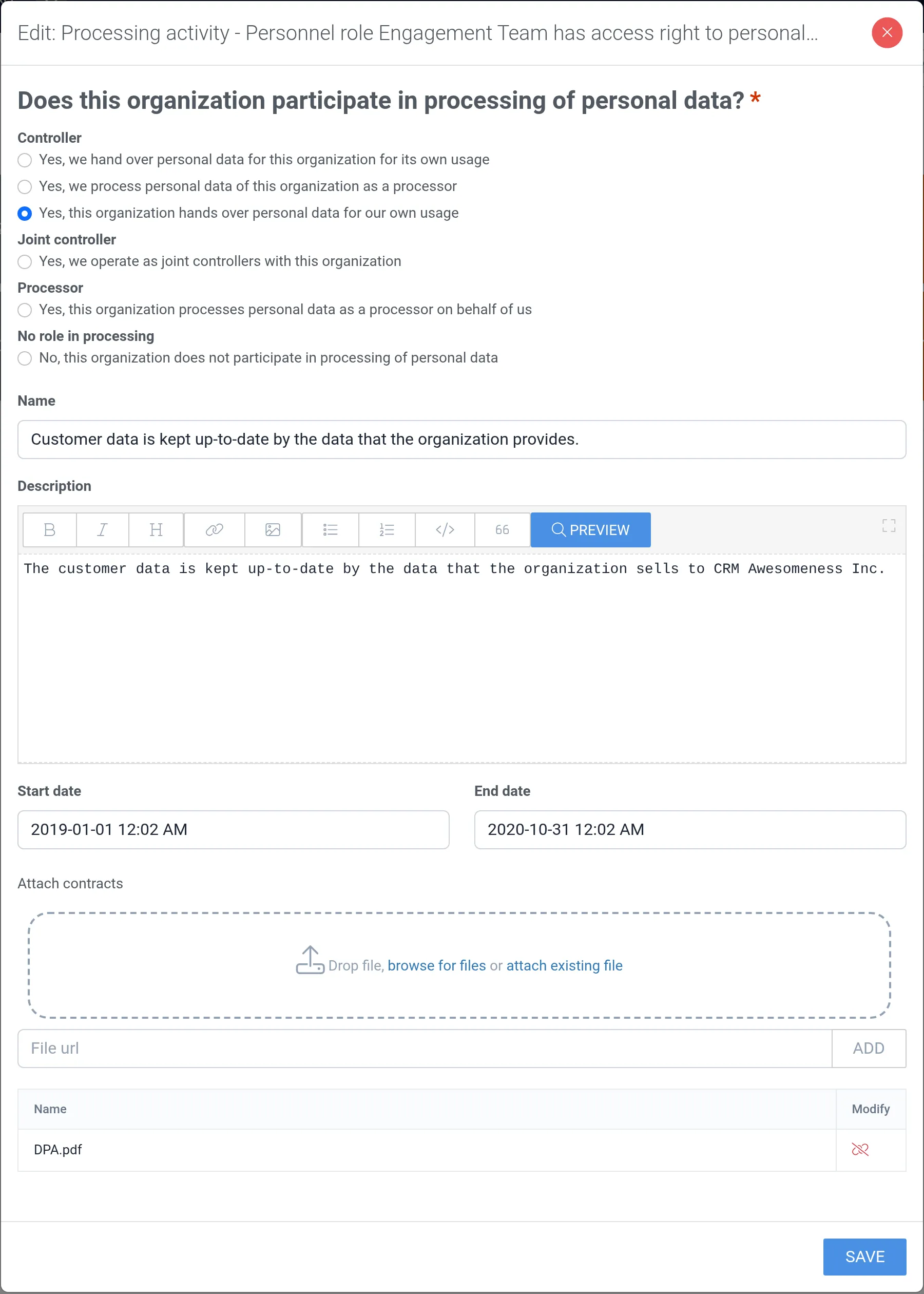
4. To detach an attached file, click its detach icon.
5. Click Save.
6. Repeat to add all necessary processing activities.